In short: keep your logo as SVG wherever it is accepted — on your website, in design work and for print preparation — because a vector stays sharp at every size and is usually tiny. Keep a PNG with a transparent background next to it for everything that only takes pixels: e-mail signatures, many upload forms, office documents you send to others. JPG has no transparency and suits logos poorly; WebP works on the web but not everywhere else.
This comparison explains the difference between vector and raster, compares the two formats point by point, shows where each is accepted, covers what to know about scripts in SVG files, and ends with how to convert in both directions — including the limits of turning a PNG back into a vector.
Vector vs raster: what SVG and PNG actually store
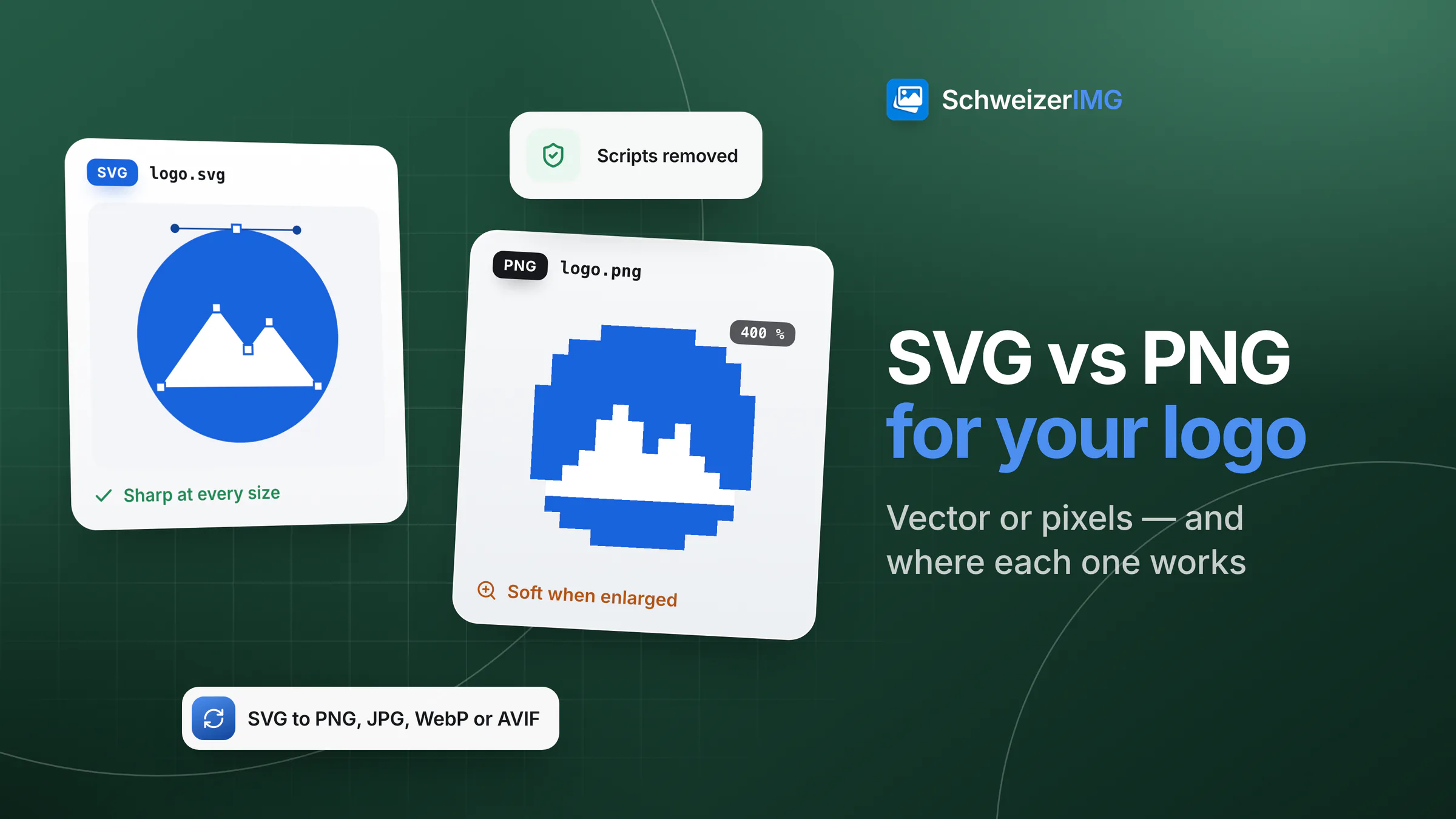
An SVG file contains drawing instructions: shapes, curves, colours and text, written as XML. The device draws them fresh at whatever size is needed, so a circle stays a perfect circle in a 16-pixel icon and on a trade-fair banner. A PNG file contains a fixed grid of pixels. It looks perfect at its own size; enlarged, edges become soft or jagged, because the detail between the pixels was never stored. SVG is an open W3C standard; PNG is the classic lossless pixel format.
SVG vs PNG for logos at a glance
| SVG (vector) | PNG (raster) | |
|---|---|---|
| Scaling | Sharp at every size | Sharp at its own size; soft when enlarged |
| File size for a simple logo | Usually a few kilobytes | Grows with the pixel dimensions |
| Transparency | Yes | Yes |
| Photographic detail | Unsuitable | Fine (though JPG or WebP are smaller for photos) |
| Editing | Shapes and colours stay editable | Only pixels; changing a colour cleanly is hard |
| Websites | All current browsers | All browsers |
| E-mail signatures, upload forms | Often not displayed or not accepted | Accepted practically everywhere |
| Office documents | Supported by many current programs, not by all | Works everywhere |
| Security | Can contain scripts and links — clean it before use | Pixels only |
For a typical logo — a few flat colours, clear shapes, maybe a wordmark — SVG wins on scaling, file size and editing. The file stays small because a curve is described once rather than stored as thousands of pixels, and it does not grow when the logo is shown larger. A PNG of the same logo needs one version per size: small for a page header, large for a high-density screen, larger still for a presentation.
Both formats handle transparency, so a logo can sit on any background. JPG cannot: it always has a solid background, typically white, which shows as a box on coloured surfaces. WebP and AVIF support transparency and are smaller than PNG, but outside the browser they are not yet accepted everywhere. The wider format picture is in WebP vs AVIF vs JPEG vs PNG.
Where PNG is the right choice is detail that cannot be drawn as shapes: a logo with a photo, soft gradients with texture, a scanned hand-drawn mark. Tracing such images into SVG produces large, unwieldy files without any gain in sharpness.
Where SVG works and where you still need PNG
- Website and online shop: SVG for the logo in the header and footer, plus the favicon set — how that is built is explained in favicon sizes.
- E-mail signatures: PNG. Many e-mail programs do not display SVG images, or block them. Export at twice the displayed size so the logo stays sharp on high-density screens.
- Upload forms of directories, marketplaces, event platforms and social profiles: usually PNG or JPG only. Use the PNG with transparency, or JPG on white where transparency is not wanted.
- Office documents and presentations: many current programs can insert SVG, but older versions and your recipients' software may not. For files you send, PNG is the safe choice.
- Print: print shops usually prefer vector files. Ask which format they need; if they want pixels, export at the requested resolution rather than enlarging a small PNG.
- Brand guidelines and agencies: keep the original vector file as the master and derive every PNG from it — never the other way round.
Is SVG safe? Scripts and hidden content in SVG files
Because SVG is a text format that browsers interpret, it can contain more than a drawing: scripts, event handlers, embedded HTML, links to external files, and editor data such as layer names, comments or authoring metadata. Shown inline on a website or opened directly in a browser, a manipulated SVG from an unknown source can therefore do more than a PNG ever could. Treat SVG files you receive like any other file that can run code, and clean them before publishing.
In SchweizerIMG, Optimise SVG and SVG to PNG, JPG, WebP or AVIF remove scripts and linked files from every SVG first; comments and metadata are always removed when the SVG is made safe. External fonts and images are never loaded, and text is drawn with the bundled fonts — so a logo whose wordmark uses a special font should have its text converted to outlines in the design program. All of this happens in your browser; the files are not uploaded (see the security page).
Converting: SVG to PNG, PNG to SVG, and optimising
- 1
SVG to PNG
SVG to PNG, JPG, WebP or AVIF renders SVG files at any size — by scale (for example 1, 2, 3), by width or height in pixels, or by print resolution — several sizes at once, on a transparent or coloured background. A whole set of logo files is one run.
- 2
Optimise the SVG
Optimise SVG makes SVG files smaller and checks that the result looks identical. “Safe” keeps ids, classes and styles; “Aggressive” goes for the smallest file. Use it before putting a logo on a website.
- 3
PNG to SVG (trace)
Image to SVG (trace) turns logos, icons, signatures and line art into vectors, with the presets “Logo (up to 8 flat colours)”, “Line art (black and white)” and “Detailed (up to 32 colours)”. Which plans include it is shown on the pricing page.
Tracing approximates
A traced SVG is a reconstruction of the pixels, not the designer's original. It works best on simple, flat logos with clear edges and a clean, large source image. Photo-like images are refused, large images are reduced first and very thin strokes may break up. Check the result closely — and if the original vector file exists somewhere, ask for it: it will always be better.
All three tools are among the vector tools; which file types they open is listed in supported image formats.
Which to use: a short decision guide
- You have the logo as SVG: keep it as the master, use it on the web, and export PNGs for e-mail, forms and documents.
- You only have a PNG of a simple, flat logo: trace it, check the result at large and small sizes, and keep the PNG as well.
- Your logo contains a photo or textured artwork: stay with PNG (or WebP on the web) in the sizes you need.
- You are unsure what the receiving system accepts: send a transparent PNG — it is the format that works almost everywhere.
Frequently asked questions
Is SVG or PNG better for a logo?
For the logo itself, SVG: it is sharp at every size, small and editable. For places that only accept pixels — e-mail signatures, many upload forms, documents you share — a PNG exported from the SVG is the better choice.
What size should a PNG logo be?
About twice the size at which it is displayed, so it stays sharp on high-density screens. For an e-mail signature shown 200 pixels wide, export about 400 pixels. Exporting several scales from the SVG in one run covers different uses.
Can I turn a JPG logo into an SVG?
Yes, if it is a simple flat logo: Image to SVG (trace) reconstructs it as shapes. Compression artefacts in a small JPG make the edges rougher, so use the largest, cleanest version you have.
Why does my SVG logo look different after converting?
Usually because of fonts or linked files: external fonts and images are not loaded, and text is drawn with the bundled fonts. Convert text to outlines and embed everything in the SVG before converting.
Ready to sort out your logo files? Open the vector tools, see how agencies prepare client logos without uploading them, or create a free account.
General information
This page is general information and marketing content. It simplifies how file formats work and which programs and services accept them; support changes over time and differs between versions. For print jobs, brand guidelines or publishing rules, please check with your print shop, designer or a qualified professional.