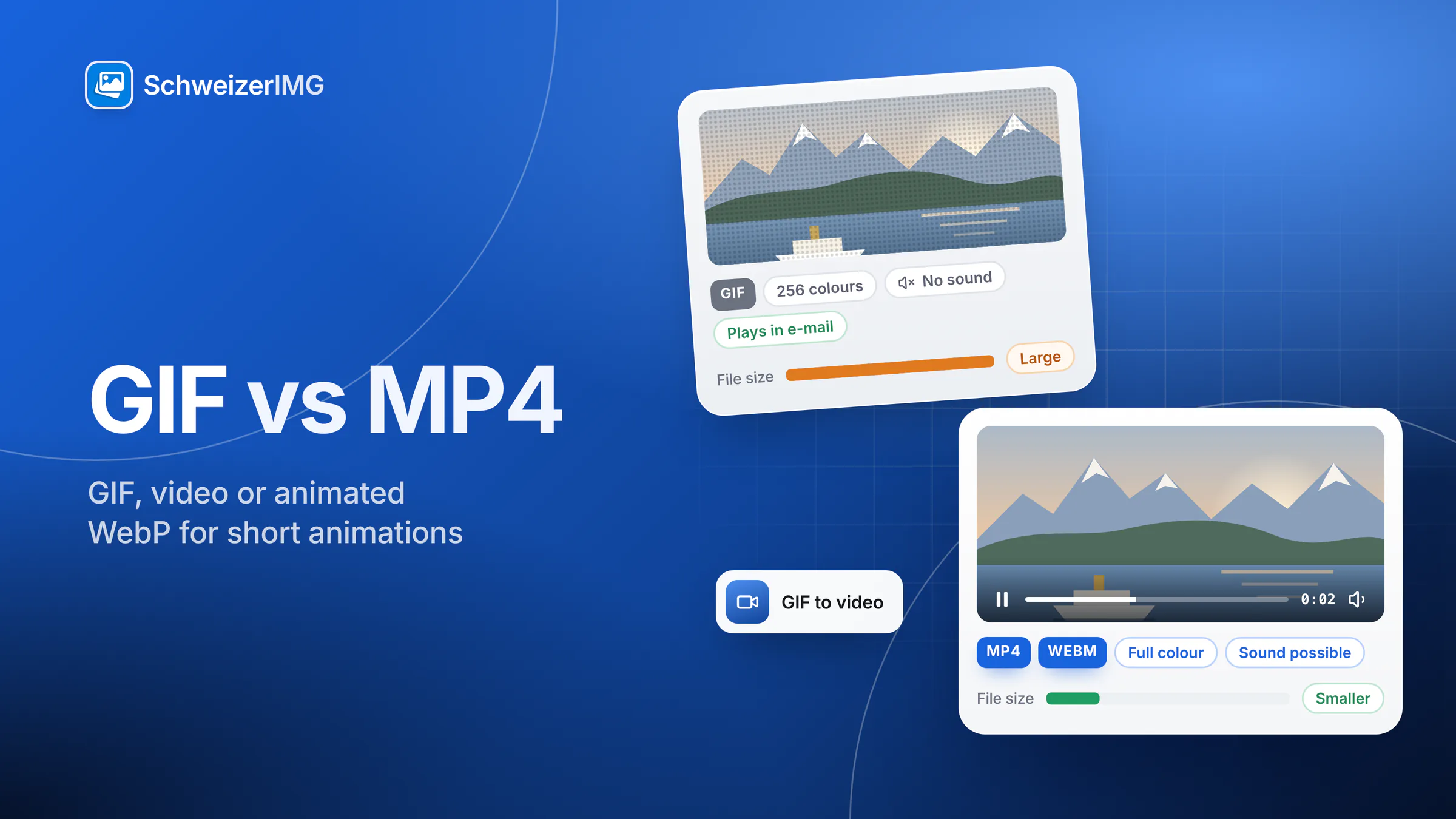
For short animations on a website, a muted, looping MP4 or WebM video is usually the best choice: it is typically many times smaller than the same GIF and shows full colour. Animated WebP sits in between — an image file with full colour and transparency that every current major browser shows. GIF remains the format for places that play no video and may not show WebP: e-mail newsletters, many chat and ticket tools, and documentation systems that accept only images.
This comparison looks at the candidates — GIF, MP4/WebM video, animated WebP and, briefly, animated PNG (APNG) — by file size, quality, colours, sound, autoplay and support, and shows how to convert between them in your browser. It describes the formats in general; actual sizes always depend on the content and the settings.
GIF, video, animated WebP and APNG at a glance
| Property | GIF | MP4 / WebM video | Animated WebP | APNG |
|---|---|---|---|---|
| Colours | 256 per frame | Full colour | Full colour | Full colour |
| Transparency | On or off only | In practice none | Full alpha channel | Full alpha channel |
| Compression | Lossless, limited palette | Lossy, between frames | Lossy or lossless | Lossless |
| File size tendency | Large | Usually the smallest | Usually much smaller than GIF | Often large |
| Sound | No | Possible | No | No |
| Plays as | An image that starts by itself | A video: autoplay, controls, pause | An image that starts by itself | An image that starts by itself |
| Websites | Everywhere | Everywhere, with the right markup | Current major browsers | Current major browsers |
| Widely shown, sometimes only the first frame | Rarely plays | Not reliable | Not reliable |
File size and quality: why video is usually far smaller
The difference lies in how each format compresses motion. GIF compresses every frame without loss, with a palette of at most 256 colours; an encoder can store only the area that changed, but each changed pixel is stored in full. Video codecs such as H.264, VP9 or AV1 predict each frame from the previous ones and store only the remaining difference, with lossy compression. For camera footage or a screen recording with scrolling, that usually makes a video many times smaller — and better looking.
Quality differs too. GIF has to dither gradients and skin tones into dot patterns. Video shows full colour but can blur sharp text and thin lines at a low quality setting. Animated WebP can be lossless for interface graphics or lossy for photo-like content, and it keeps soft transparency. APNG is lossless and full colour — clean, but often large, so it suits small graphics with transparency better than footage. The formats themselves are compared in WebP vs AVIF vs JPEG vs PNG.
Autoplay, loops and sound on a website
A GIF or an animated WebP behaves like an image: it starts as soon as it loads, loops as often as the file says, and the reader gets no pause button. A video is an element you control. For a GIF-like loop, the usual markup is a muted video that plays by itself — browsers generally allow automatic playback only without sound:
<video autoplay muted loop playsinline poster="demo-poster.jpg" width="640" height="360">
  <source src="demo.webm" type="video/webm">
  <source src="demo.mp4" type="video/mp4">
</video>
muted makes autoplay possible, playsinline keeps phones from opening the video full screen, and poster shows a still image until the video starts — Extract frames makes one. Add controls or your own pause button when the loop runs longer than a few seconds: WCAG 2.2 success criterion 2.2.2 (Level A) asks for a way to pause, stop or hide moving content that starts automatically, lasts more than five seconds and appears next to other content — see Understanding “Pause, Stop, Hide” on w3.org.
E-mail, chat and documentation: where video often does not play
Outside your own website, the receiving program decides what plays:
- E-mail newsletters. Video rarely plays inside an e-mail program, and animated WebP is not reliable either. An animated GIF is widely shown, though some programs display only its first frame. Keep it small, put the message in the first frame, or use a still image that links to a page with the video.
- Chat and messengers. Many accept GIFs and short videos, but they may convert or re-compress what you send; behaviour varies between apps and changes with updates.
- Documentation, wikis and ticket systems. Many accept images but no video, or play video only through an embedded player. A short GIF works everywhere; where video is accepted, it is lighter.
- Your own website or shop. You control the markup, so a muted MP4/WebM loop or an animated WebP is usually better than a GIF — a product demo on a shop page loads faster as a short video.
Converting between GIF and video in your browser
SchweizerIMG has a tool for each direction. Both run in your browser: the video and the frames are processed on your device and never uploaded — see the security page.
- Video to GIF turns a short clip into an animated GIF, WebP or PNG (APNG). Choose the part (start and end in seconds), the frames per second, the width — empty means the video’s width, at most 480 pixels — the speed and how often it plays. For GIF, the format settings control colours, dithering and palette.
- GIF to video converts an animated GIF, WebP or PNG into an MP4 or WebM video with the same timing. Automatic takes MP4 (H.264) where your browser can create it, otherwise WebM. Set a quality or a bitrate, how often the animation repeats inside the video, and the background for transparent areas — the videos carry no transparency.
- GIF and animation editor trims, crops, resizes and slims down an animation that has to stay a GIF — see how to make a GIF smaller.
- Extract frames saves single frames of a video or an animation, for a poster image or an e-mail fallback.
The video tools need a recent browser that can encode and decode video (WebCodecs). Which formats it can create differs between browsers, and WebM is used where MP4 is not available — see supported browsers. Video jobs run one at a time. The longest clip the video tools read depends on the plan; which plans include Video to GIF and GIF to video is shown on the pricing page.
How to choose the right format
- Hero or product demo on your website: a muted MP4/WebM loop with a poster image.
- Small interface loop on your website: a video, or animated WebP if it needs transparency or must behave like an image.
- E-mail newsletter: a small GIF with the message in the first frame — or a still image that links to the video.
- Chat, tickets and wikis that accept only images: a GIF, trimmed and with few colours.
- Animation over changing backgrounds: animated WebP or APNG; GIF gives hard edges, video no transparency.
- Anything with sound: a video — no image format carries audio.
Frequently asked questions
Is MP4 always smaller than GIF?
Usually, not always. For camera footage and screen recordings, the video is typically many times smaller. A tiny icon animation with a few flat-coloured frames can be just as small as a GIF. Convert and compare: the result shows which file is lighter.
Can I put an MP4 video in an e-mail newsletter?
You can attach it, but most e-mail programs will not play a video inside the message. The usual approach is an animated GIF, or a still image that links to a page with the video.
Does converting a GIF to video keep transparency?
No. Videos made with GIF to video have no transparency: transparent areas are filled with the background colour you choose. If you need transparency, keep the animation as WebP or APNG.
Why did I get a WebM file instead of an MP4?
With Automatic, the tool makes MP4 (H.264) when your browser can create it and WebM otherwise — not every browser can encode H.264. WebM plays in current versions of the major browsers; if you need MP4, try another browser.
Open the animation tools, check supported image formats, or create a free account.
General information
This page is general information and marketing content. It simplifies the GIF, WebP, APNG, MP4 and WebM formats, browser autoplay rules and the WCAG 2.2 success criteria; how browsers, e-mail programs and apps handle animations differs between programs and versions and changes over time. For a technical or accessibility review of your own website or newsletter, please consult a qualified professional.