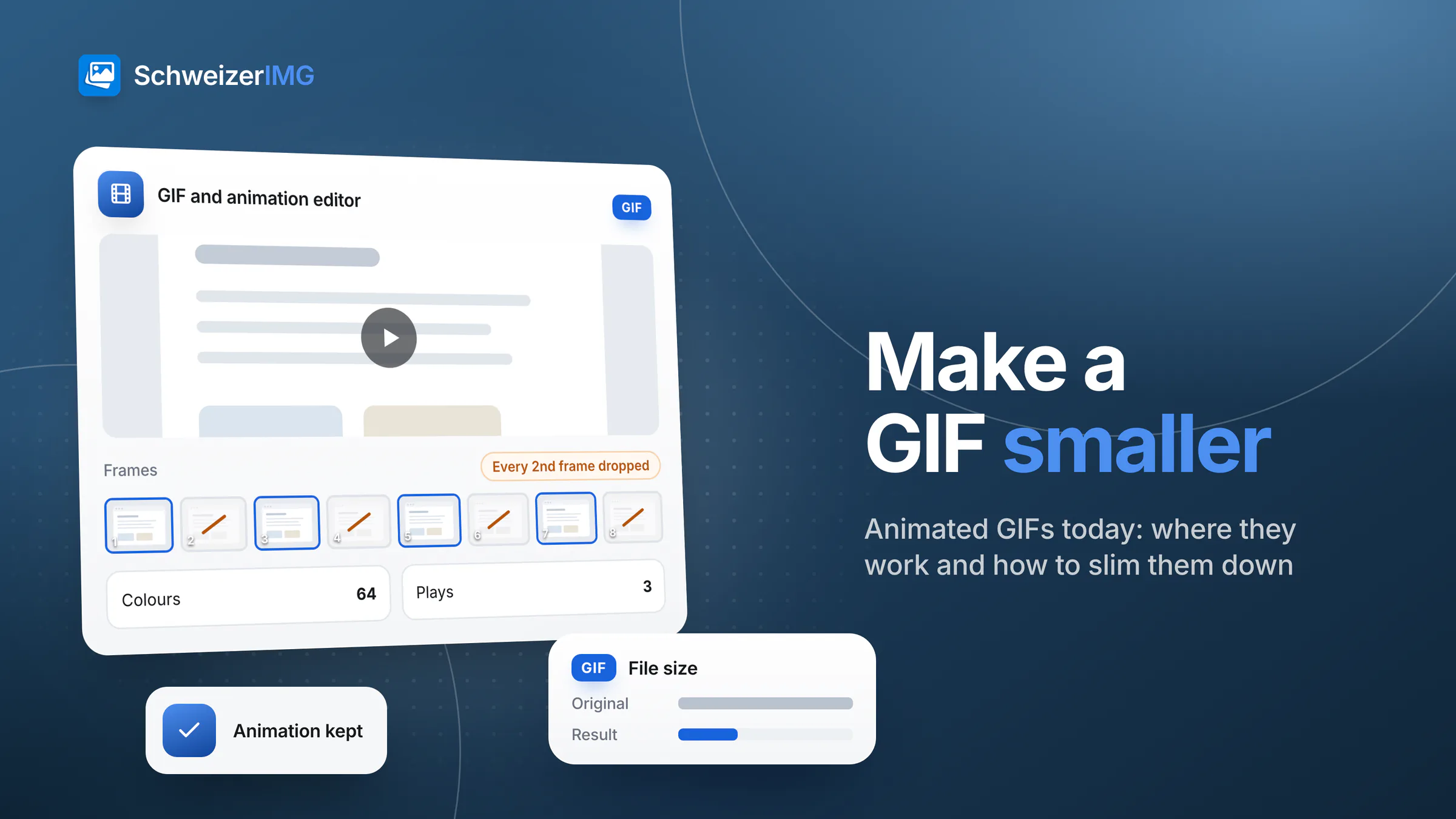
To make a GIF smaller, reduce what the file has to store: fewer frames, fewer pixels per frame and fewer colours. Trimming, dropping every second frame, scaling down and a smaller palette often shrink a GIF considerably while it still plays as intended. Where other formats are accepted, animated WebP or a short video is usually the bigger step.
This guide explains where animated GIFs still do a good job, why the format produces heavy files, how to slim one down step by step with GIF and animation editor, when a still image from Extract frames is the better choice, and how to keep animations accessible. Everything described runs in your browser; the files are never uploaded.
Where animated GIFs still work well
GIF dates from the late 1980s, yet it is still the one animation format that nearly every program shows without a player. That is its whole advantage, and it explains where it still belongs:
- E-mail newsletters. Most e-mail programs show an animated GIF inside the message; video rarely plays there. Some programs show only the first frame, so the first frame has to carry the message on its own.
- Documentation and help pages. A three-second loop of a click in a settings screen explains more than a paragraph — and many wiki and help-desk systems accept images but not video.
- Chat and internal tools. Messengers, ticket systems and project boards preview GIFs inline.
On your own website the picture changes: there you control the markup, and a video or an animated WebP almost always does the same job with a smaller file. The comparison of GIF, video and animated WebP goes through that choice in detail.
Why GIF files get so large
A GIF stores each frame as a picture of at most 256 colours, compressed without loss — efficient for simple graphics in the late 1980s, and the reason a few seconds of screen recording can weigh more than the video they came from. The format is defined in the GIF89a specification on w3.org; its limits in practice:
- 256 colours per frame. Photos, gradients and shadows have far more. The encoder picks a palette and imitates the rest with dithering — fine dot patterns that look grainy and compress poorly.
- Lossless, frame by frame. GIF compresses areas of identical pixels well and noise badly. An encoder can store only the part that changed since the previous frame, but camera footage changes everywhere, all the time.
- Every pixel times every frame. The size grows with width × height × number of frames. Doubling the width roughly quadruples the pixels to store.
- No sound, simple transparency. A GIF has no audio track, and a pixel is either fully transparent or fully opaque — soft shadows turn into hard, fringed edges.
How to make a GIF smaller: the levers
Each lever removes a different part of what the file stores. Work through them roughly in this order — the first ones save a lot and are barely visible to the viewer:
| Lever | Option in *GIF and animation editor* | What it saves | What to watch |
|---|---|---|---|
| Trim | Frames → first and last frame kept, frames to delete | Every frame you cut | Keep the moment that matters |
| Fewer frames | Frames → drop every Nth frame | Up to half the frames at 2 | Fast motion can look jerky; the length stays the same |
| Crop | Crop (pixels) | Pixels outside the area that matters | Leave a little margin around the action |
| Resize | Resize → width or scale | Pixels in every frame | Text in screen recordings must stay readable |
| Fewer colours | Format settings → GIF → colours, dithering, palette | Colour information and grain | Gradients may show bands |
| Another format | Save as → WebP | Usually a lot: full colour, better compression | Not every e-mail program or app shows WebP |
With no edit at all, the tool simply re-optimises the animation and never returns a file larger than the original.
Step by step: making a GIF smaller in your browser
- 1
Open the animation
Open GIF and animation editor and add one animated GIF, WebP or PNG. The tool edits one animation per run and shows its frames on a timeline, numbered from 1.
- 2
Cut what nobody needs
Under Frames, set the first and the last frame kept to remove the lead-in and the pause at the end, and list single frames to delete. Then try Drop every Nth frame at 2 or 3: the delay of a dropped frame goes to the frame before it, so the animation keeps its length.
- 3
Make the frames smaller
Crop to the area where something happens, then resize — for a newsletter or a help page, the width the reader actually sees is enough. Under Resampling, Nearest neighbour (pixel art) keeps pixel graphics crisp; Lanczos (sharpest) suits everything else.
- 4
Reduce the colours
In Format settings → GIF, lower Colours step by step. Recordings of flat interfaces often look unchanged with far fewer than 256; photo-like footage needs more. Dithering None gives the smallest files for flat graphics, Floyd–Steinberg smooths gradients, and the palette One for all frames keeps colours steady across the loop.
- 5
Choose plays and format
Plays sets how often the animation runs (0: forever). Under Save as, keep GIF for e-mail and chat, or choose WebP where it is accepted.
- 6
Compare and keep the best
Compare the result with the original. Each run is one operation; another setting is another run.
The animation is read from your disk, edited in your browser’s memory and saved back to your device; about the animation, our server learns only that the tool ran. How that works is explained in where my images are processed, in more depth in how browser-based image editing works, and on the security page. Before you share a screen recording, also check what it shows in passing: names, e-mail addresses, a notification that popped up.
Accessible GIFs: flashing, motion and alternatives
An animation that moves on its own can distract, and one that flashes can cause harm. The Web Content Accessibility Guidelines (WCAG 2.2) contain two success criteria that apply directly to GIFs:
- No more than three flashes per second. Success criterion 2.3.1 (Level A) says content must not flash more than three times in any one-second period, unless the flashes stay below the defined thresholds — see Understanding “Three Flashes or Below Threshold” on w3.org.
- A way to stop longer motion. Under success criterion 2.2.2 (Level A), moving content that starts automatically, lasts more than five seconds and is shown alongside other content needs a way to pause, stop or hide it. A GIF on a page has no pause button, so keep loops short, set Plays to a few repeats instead of forever, or show a still image that links to the animation.
Give the animation an alt text that says what it shows (“Clicking Export opens the format menu”), and never put information only in the later frames: whoever sees a still, a first frame or nothing at all should still get the message.
Alternatives: a still image, animated WebP or video
Sometimes the lightest animation is none at all. Extract frames saves the frames of an animated GIF, WebP or PNG — or of a video — as separate images: all frames, every Nth, a range, or the frames at given times, as JPG, PNG, WebP, AVIF and other formats. Typical uses:
- A poster or fallback image for e-mail programs that show only the first frame, or for a printed manual.
- One clean frame for places where animations are not allowed.
Animated WebP stores full colour and soft transparency and is usually much smaller than the same GIF. All current major browsers show it; e-mail programs and some apps do not do so reliably. GIF and animation editor saves any animation it opens as WebP (or as animated PNG, APNG), and Video to GIF can write WebP directly from a clip. The image format comparison sets WebP beside JPEG, PNG and AVIF.
A short video in MP4 or WebM is usually the smallest option of all on websites. GIF to video turns an animated GIF, WebP or PNG into a video with the same timing — as MP4 or WebM, depending on what your browser can create. The video tools need a recent browser; see supported browsers.
Frequently asked questions
Why is my GIF larger than the video it was made from?
Because a video stores the changes between frames with lossy compression, while a GIF stores each frame’s pixels without loss and with at most 256 colours. Camera footage and scrolling screen recordings change almost every pixel, so the GIF has to store nearly everything again and again.
Does changing the speed change the file size?
Hardly. Speed only changes how long each frame is shown. To save space, reduce the number of frames — by trimming or with Drop every Nth frame.
Do animated GIFs play in e-mail newsletters?
In most e-mail programs, yes. Some show only the first frame, so design that frame as a complete message. Video and animated WebP are far less reliable in e-mail.
Start with the animation tools — which plans include GIF and animation editor is shown on the pricing page — or create a free account. If you prepare newsletters and help content for clients, the page for agencies shows how the tools fit that work.
General information
This page is general information and marketing content. It simplifies the GIF and WebP formats, the WCAG 2.2 success criteria and how browsers and e-mail programs show animations, which varies between programs and versions. For an accessibility review of your own website or newsletter, please consult a qualified professional.