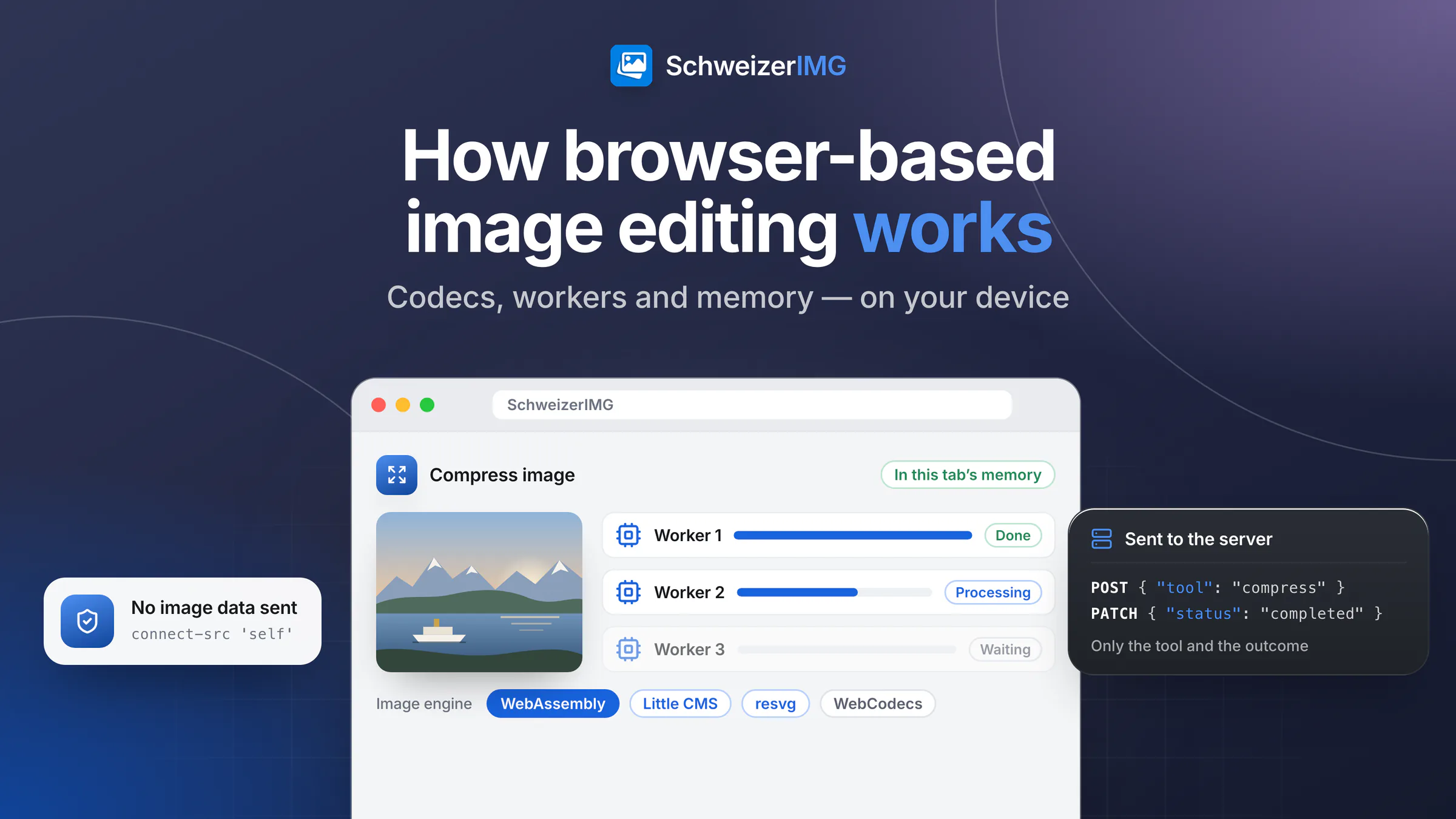
Browser-based image editing works by sending the program to your device instead of sending your image to a server. When you open a SchweizerIMG tool, your browser loads an image engine — codecs and processing code compiled to WebAssembly — and runs it in background threads on your own processor. The photo is read from your disk, processed in the tab's memory and saved back to your disk.
This article explains what happens at each step: which parts the engine is made of, why your device's memory sets the limits, why HEIC photos and videos depend on the browser, and exactly which two small messages reach our server per run. Whether local processing is the right choice compared with upload websites is covered in image tools in the browser vs. upload websites; here we look under the bonnet.
How browser-based image editing works, step by step
- 1
The engine is loaded
The engine's code and codecs come from our own domain — the same static files for every user. Your browser keeps them in its cache, so later visits start faster. Each tool loads only the parts it needs.
- 2
The image is read locally
When you drop a photo onto the tool, the browser hands the file to the page. Nothing is transmitted: the file goes from your disk into the tab's memory.
- 3
A worker decodes and processes it
A Web Worker — a background thread of the browser — decodes the image into raw pixels, applies the operation (resize, convert, blur, remove metadata …) and encodes the result.
- 4
You save the result
The finished file is offered for download from memory. It is not stored anywhere else: close the tab and it is gone.
The engine: image codecs compiled to WebAssembly
Browsers can display many image formats, but they offer pages little control over how images are written: quality settings, chroma subsampling, lossless modes, colour profiles or metadata. SchweizerIMG therefore brings its own encoders and decoders. They are compiled to WebAssembly, a compact binary format that every current browser runs as fast, compiled code inside its security sandbox.
| Part of the engine | What it does |
|---|---|
| Image codecs (WebAssembly) | Read and write JPEG, PNG, WebP, AVIF and JPEG XL with full control over quality and compression |
| Colour management (WebAssembly) | Reads embedded ICC colour profiles and converts colours correctly, for example to sRGB for the web |
| SVG renderer (WebAssembly) | Draws SVG graphics as pixels — after scripts, external references and animations have been removed from the file |
| Raster pipeline | Resizing, cropping, rotating, filters, colour adjustments, watermarks and hidden areas on the decoded pixels |
| Video support (WebCodecs) | Uses the browser's own video decoders and encoders for the video tools |
Colour management matters more than it sounds. A photo from a recent phone or camera often carries a wide-gamut colour profile. Without converting it properly, the same picture looks dull or oversaturated on a website. The engine reads the profile and converts the colours instead of simply discarding it — very saturated colours outside sRGB are clipped, which is the honest limit of any conversion to sRGB.
Web Workers: why the page stays responsive
Decoding a photo of twenty or more megapixels is heavy work. If it ran on the page's main thread, buttons and scrolling would freeze. The engine therefore runs every job in Web Workers: separate background threads without access to the page itself. Depending on how many processor cores your device has, several workers process the images of a batch side by side. A job can be cancelled at any time, and a watchdog stops a job that hangs. The workers also add a layer of protection: a malformed image file is decoded in a sandboxed thread that cannot touch the page.
Memory: why your device sets the limits
A file's size says little about the memory it needs. A JPEG of a few megabytes holds a photo that, decoded, takes four bytes per pixel — a 24-megapixel image needs close to a hundred megabytes as raw pixels, and many operations need a second copy for the result. The engine estimates each job's memory before it starts and schedules a batch so that it stays within a budget derived from what the device reports. On devices with little memory, such as most phones, the pixel limit is lowered automatically, and you are warned before a run that would likely fail.
- Phones and tablets have far less memory per tab than computers. Very large images — panoramas, high-resolution scans — are better processed on a computer.
- Big batches run in turns rather than all at once, so they take longer but do not crash the tab.
- Close other heavy tabs if a large image fails, or resize it first with Resize and apply heavier tools to the smaller version.
- Your plan's limits are shown before a run; what to do when the device runs out of memory is in large images and memory.
HEIC and video: what the browser itself decodes
Two kinds of files rely on the browser's own decoders instead of the engine's. HEIC photos from iPhones open only in Safari: SchweizerIMG bundles no HEIC decoder (the format is covered by patents and licences we cannot ship in a browser tool), but Safari decodes HEIC itself and hands the pixels to the tool. Why iPhones use the format and how to get compatible files is explained in HEIC iPhone photos explained.
Video tools such as Video to GIF, GIF to video and Extract frames use WebCodecs, the browser's interface to its built-in video codecs. It is available in recent browser versions; support for individual codecs differs between browsers, and the page tells you before a run if WebCodecs is missing. How to keep the resulting GIFs light is covered in making a GIF smaller. Which plans include Video to GIF is shown on the pricing page. Supported versions are listed in supported browsers.
What reaches the server — and what does not
An account, plans and the monthly count of operations live on our server, so a run is not completely silent. Per run, the browser sends exactly two small messages: one when the tool starts, naming the tool, and one when it ends, with the outcome. Both are built from a fixed list of allowed fields — any other field, such as a file name or a size, is rejected by the server.
{ "tool": "compress" }
{ "status": "completed" }
Image bytes, file names, sizes, pixel dimensions, metadata such as GPS location, thumbnails and the text you type into a tool never leave the device. The technical safeguard is the page's Content Security Policy with connect-src 'self' (CSP Level 3): it tells your browser to block every script and every worker of the page from connecting to any other server. You can watch this yourself in your browser's network tab — how is described in the comparison with upload websites and in where your images are processed.
From one tool to the next — and after you close the tab
Many tasks need more than one tool, for example Crop, then Resize, then Remove metadata. With Continue with another tool the results are passed to the next tool page in the tab's memory: not uploaded, not saved in the browser's storage, not put into a link. A reload ends the hand-off by design.
The same applies to everything else: there is no history and no cloud copy. When you close or reload the tab, the images and results it held are gone, including work in the Image editor. Download what you want to keep. More on the overall design is on the security page.
What local processing does not protect against
Processing in the browser keeps images away from our servers, but it cannot protect against a compromised device, malware or a malicious browser extension, and anyone you send a result to holds a copy. Keep your browser and system up to date and install only extensions you trust.
Frequently asked questions
Why does a large image fail on my phone but not on my laptop?
Because the image must fit into the device's memory as raw pixels, and a browser tab on a phone gets much less of it than on a computer. The engine lowers its pixel limit on small-memory devices and warns you in advance; for very large images, use a computer.
Can I keep using the tools offline once they have loaded?
No. Signing in and counting operations need a connection, so every run starts and ends with a short request to our server. The connection carries only account and usage data — the images themselves are never transferred.
Does the engine use AI models in my browser?
No. The engine contains no AI models. Remove background colour works by colour and is best on even backdrops; there is no AI upscaling or object removal.
Why does a tool say my browser is not supported?
All tools need WebAssembly and Web Workers, which every current browser offers — some company policies switch WebAssembly off. The video tools also need WebCodecs. Updating the browser usually solves it; details are in supported browsers.
The best way to understand it is to try it: browse all tools, open your browser's network tab and run one, or create a free account.
General information
This page is general information and marketing content. It simplifies how the image engine, browser features (WebAssembly, Web Workers, WebCodecs) and memory behave; support differs between browsers, versions and devices and changes over time.