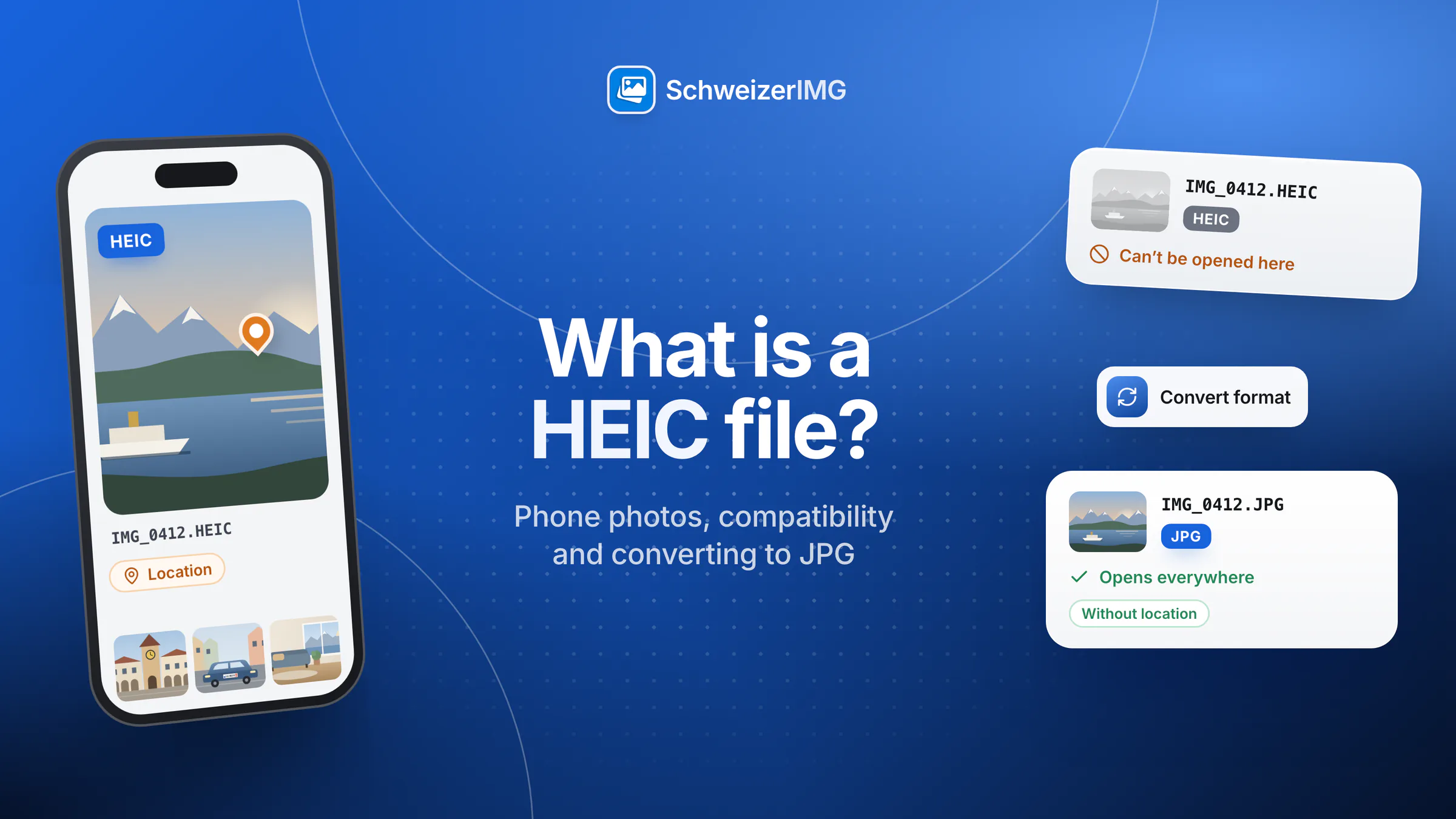
HEIC is a photo format. A HEIC file is an image stored in HEIF, the High Efficiency Image File Format, with the picture compressed using the HEVC video codec. Many smartphones — iPhones by default — save their photos this way because the files are noticeably smaller than JPEGs of similar visual quality.
On the phone that took them, HEIC photos simply work. The trouble starts when they leave it: an upload form accepts only JPG or PNG, an older computer program shows an unknown file, a recipient cannot open the attachment. This article explains what the format is, where it causes problems, which settings decide it, and how to convert HEIC to JPG, PNG or WebP.
What is a HEIC file?
HEIF is an international standard for storing images and image sequences together with their metadata (ISO/IEC 23008-12). It is a container: it describes how pictures, previews and extra information are packed into one file. HEIC is the common variant in which the pictures inside are compressed with HEVC (H.265). The file extension is usually .heic, sometimes .heif.
- Efficient compression. HEVC is a modern codec, so a HEIC photo needs less storage than a JPEG that looks about the same.
- More than one image per file. The container can hold several images and related items — for example a preview, a burst of shots or depth information used for portrait effects.
- Metadata included. Like a JPEG, a HEIC photo carries EXIF data: date and time, camera details and, if location services were on, the GPS position.
Why phones save photos as HEIC
The reason is storage. A phone takes thousands of pictures, and every one of them is also copied to backups and sometimes to a cloud library. A format that saves space on each photo saves a lot over a whole library — without the visible loss that a more strongly compressed JPEG would show.
The cost is compatibility. JPEG has been readable almost everywhere for decades. HEIC depends on an HEVC decoder, and because HEVC is covered by patents and licences, not every operating system, program or website includes one.
Why HEIC files cause problems
- Computers and older programs. Some computers need an extra codec to show HEIC files; older image viewers and office software cannot open them at all.
- Upload forms and portals. Many forms — for an application, an insurance claim, a rental dossier or an online shop — accept only JPG, PNG or a few other formats and reject HEIC.
- Recipients. A HEIC attachment that opens instantly on your phone can show up as an unknown file on the recipient's computer.
- Websites. Browsers do not display HEIC consistently, so HEIC is not a format to publish on a website.
Phone settings and transfers that decide the format
Whether a photo ends up as HEIC or JPG is usually decided in two places:
- The camera format setting. Phones that use HEIC typically offer a choice in the camera settings between a high-efficiency format (HEIC) and a “most compatible” format (JPEG). The setting applies to new photos only; existing ones stay as they are.
- The way photos are transferred. Some ways of sharing or exporting convert photos to JPEG automatically — sending by e-mail is a common example — while others pass on the original HEIC file. Copying to a computer can do either, depending on a transfer setting on the phone.
The exact menu names differ between phone models and software versions. If you are unsure what you have, look at the file extension after the transfer: .heic or .jpg.
HEIC compared with JPG, PNG and WebP
| Format | Strength | Use it for |
|---|---|---|
| HEIC | Small files at high quality | Storing photos on the phone |
| JPG | Opens practically everywhere | Upload forms, e-mail, older computers, printing services |
| PNG | Lossless, supports transparency | Screenshots and graphics; for photos the files become large |
| WebP | Small files, widely supported by browsers | Photos on your own website |
How the web formats compare in detail is explained in WebP vs AVIF vs JPEG vs PNG.
How to convert HEIC to JPG with SchweizerIMG
HEIC opens only in Safari
SchweizerIMG has no HEIC decoder of its own: the format's compression is covered by patents, and no decoder with a suitable licence exists that we could bundle into a tool running in your browser. Safari (on Mac, iPhone and iPad) decodes HEIC photos itself and hands the pixels to the tool. In other browsers the app tells you that the photo cannot be opened. Details: iPhone photos (HEIC).
- 1
Open SchweizerIMG in Safari
Sign in and open Convert format from the optimisation tools.
- 2
Add your photos and choose the format
Add one photo or a whole set and set “Convert to” to JPEG for the widest compatibility, PNG for lossless copies or WebP for a website. The whole run counts as one operation.
- 3
Download the results
Save the converted images individually or together as a ZIP file. By default, location and device details are left out of the new files.
Not using Safari? Switch the phone's camera to the most compatible format for new photos, or let the phone export existing photos as JPEG — then every tool opens them in any current browser. A complete walkthrough for a batch is in the use case converting HEIC photos to JPG. All formats the tools open and save are listed in supported image formats.
What a conversion keeps — and what it doesn't
- The picture is decoded and saved again in the new format. JPEG and lossy WebP compress again, so choose a high quality if the image will be edited further.
- One still image per photo. The main picture is converted; extra items the container may hold, such as burst shots, are not turned into separate files.
- File size usually grows: a JPEG of similar quality is larger than the HEIC original. That is the price of compatibility.
- Metadata follows the option you choose — kept, kept without location and device details, or removed.
Location data in HEIC photos
A HEIC photo can record where it was taken, to within a few metres, together with the date, time and phone model. Converting with the default metadata setting already leaves out location and device details. To check a file, open it in View metadata; to clean photos that are already JPGs, use Remove metadata with “Private details only” — lossless, without touching the pixels. Why this matters is explained in what your photos reveal; how the processing stays on your device is on the security page.
Photos in which people can be identified, and the location attached to them, can be personal data under the Swiss Federal Act on Data Protection (FADP / nDSG). Sharing only what is needed is good practice.
Frequently asked questions
Is HEIC better than JPG?
For storage, often yes: smaller files at similar quality. For sharing, JPG is the safer choice because almost every device, program and upload form reads it.
Does converting HEIC to JPG reduce quality?
JPEG is a lossy format, so the image is compressed again. At a high quality setting the difference is hard to see; the file becomes larger than the HEIC original instead.
Why does my computer not open HEIC files?
It lacks an HEVC decoder. Some systems can add one; the simpler way is to receive the photos as JPEG or to convert them once.
Is HEIC the same as HEIF?
Almost. HEIF is the container standard; HEIC is the common variant in which the pictures are compressed with HEVC. Phones usually write .heic; the extension .heif is used for the same kind of file or for HEIF files with another codec.
Converting runs in your browser and the server learns only which tool ran, never anything about your photos. Start with Convert format in the tool overview or create a free account.
General information
This page is general information and marketing content, not legal advice. It simplifies the Swiss Federal Act on Data Protection (FADP / nDSG), and phone settings and transfer options differ by model and software version. For a decision about your own situation, please consult a qualified professional.