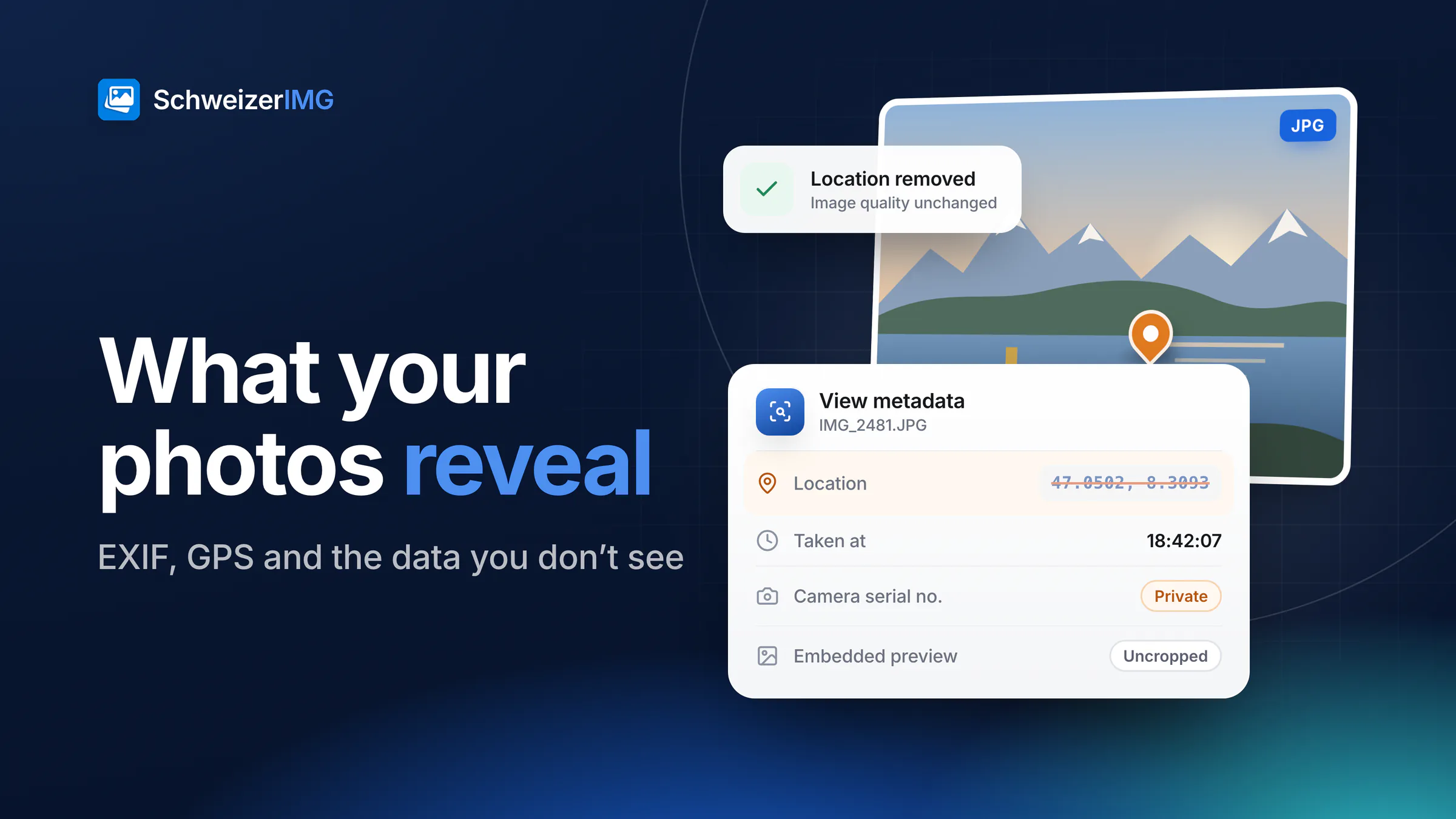
When you share a photo, you share a file — and that file usually contains far more than the image you see. Cameras and phones write a set of technical and personal details into every picture they take. Editing software adds its own. Most of it is useful while you organise your photos; very little of it is meant for the person who receives them.
The short answer: to remove EXIF data and the GPS location from a photo, clean the file on your own device before it leaves — Remove metadata does it in one run, without touching the pixels. This article explains which details are typically stored, what they can reveal in practice, and how to check and remove them yourself — without handing the photo to yet another service.
What EXIF, XMP and IPTC data a photo contains
Image metadata comes in three main standards: EXIF (written by the camera), XMP (written by editing and photo-management software) and IPTC (captions and rights information used by media and agencies). A single JPEG or HEIC photo can carry all three.
| Field | What it can reveal |
|---|---|
| GPS coordinates | Where the photo was taken, often to within a few metres — a photo taken at home shows your home address. |
| Date and time | When you were at that place, down to the second; combined with GPS, a movement pattern. |
| Camera make, model and serial numbers | Which device took the picture. Serial numbers of body and lens can link photos published under different names or accounts. |
| Lens and exposure settings | Technical details that are harmless on their own but help identify a specific camera. |
| Software and edit history | Which programs edited the photo, sometimes with computer names and the steps that were applied. |
| Embedded thumbnails and previews | Small copies of the image stored inside the file. After cropping, some programs leave the old preview in place — showing the uncropped original. |
| XMP face regions and names | Photo-management software can store who appears in the picture and where their face is. |
| IPTC captions, keywords and contact details | Descriptions, the author's name, e-mail address or phone number entered once in a camera or program and repeated in every file. |
Why this matters in practice
- A sale ad from your living room. The photo of the sofa you sell carries the coordinates of your flat — and the time stamps show when you are usually at home.
- Two accounts, one camera. A private profile and a professional portfolio can be linked through the same camera serial number, even if the names differ.
- A crop that isn't one. You cropped a document or a person out of the picture, but the embedded preview still shows the full original to anyone who extracts it.
- Names you never typed into the post. Face tags from your photo library travel with the file to whoever downloads it.
Swiss context
Photos in which people can be identified are personal data under the Swiss Federal Act on Data Protection (FADP / nDSG). Metadata attached to such photos, such as a location or names, can be personal data too. Sharing only what is needed is good practice — and easy to do.
Why you shouldn't rely on platforms to remove it
Many large social networks remove some metadata from images they display publicly. But which fields are removed differs from service to service, can change with any update, and often applies only to the displayed copy — not to the original file the platform keeps. And many common ways of sharing do not touch the file at all:
- E-mail attachments arrive exactly as you sent them.
- Messengers usually keep metadata when you send a picture “as file” or “as document” to avoid compression.
- Marketplaces and classified ads handle metadata differently, and you cannot easily check what buyers can download.
- Websites and shop systems publish the file you upload unless the system is configured to strip metadata — which is why the product photo workflow for online shops ends with Remove metadata.
- Cloud folders and shared links pass on the original file, metadata included.
The reliable rule is simple: remove what you don't want to share before the photo leaves your device. Then it no longer matters what the next service does or doesn't do.
How to remove EXIF data and GPS location from a photo
- 1
See what is in the file
Open View metadata and add one or more photos. It lists location, dates, camera and serial numbers, software, edit history and embedded previews — grouped and readable.
- 2
Choose what to remove
Open Remove metadata (or continue straight from View metadata) and pick an option. Removal is lossless: the pixels are not re-encoded, so the image quality stays exactly the same.
- 3
Process the whole batch
Add as many photos as your plan allows per run — they are all cleaned in one operation. See processing many images at once.
- 4
Check the result
Open a cleaned file in View metadata again. What you removed is gone; what you chose to keep is still there.
Which option to choose
- Private details only — the sensible choice for sharing. It removes location, serial numbers, owner and contact details, embedded previews and edit history, and keeps what makes the image display correctly and what you may want to keep: colour profile, orientation, copyright.
- Private details, software, unique IDs and people — stricter. It also removes software and computer names, unique image IDs and face regions and names.
- Everything that isn't needed to show the image — the strictest option, for photos where you want to keep nothing, including descriptions and copyright notes.
- Location only or Choose groups — when you want to remove exactly one kind of information and keep the rest.
Why it should happen on your device
Uploading a photo to an online “EXIF remover” means handing the very data you want to hide — location, time, device identifiers — to a server you don't control. SchweizerIMG runs View metadata and Remove metadata entirely in your browser: the photo is read from your disk, processed in memory and saved back to your disk. Our server learns only that the tool ran, never anything about the file. How this works and how you can verify it is described on the security page and in where your images are processed; the two architectures are compared in editing images without uploading them.
What metadata removal doesn't do
Metadata is only the invisible part. A house number, a street sign, a reflection in a window, a face in the background or a Kontrollschild in the driveway are part of the picture itself. For those, use Blur or pixelate — the hidden pixels cannot be recovered from the exported file. The workflow is in blur faces and number plates in photos, the tool reference in blurring faces and number plates.
Frequently asked questions
Does removing EXIF data reduce image quality?
No. Remove metadata rewrites only the metadata, not the pixels, so the image is not re-encoded. With the default settings, the colour profile and the orientation stay in place, so the photo also looks and rotates exactly as before.
How can I tell whether a photo contains its GPS location?
Open the photo in View metadata. If the file stores a location, the report shows its coordinates; if none appear, the photo carries no GPS position — though place names in a caption are a separate field worth checking.
Can I remove only the location and keep the date?
Yes. Choose Location only, or Choose groups and tick exactly the groups you want gone, for example GPS location and Place names. Dates, camera details and copyright stay in the file.
Do phones or messengers remove the location automatically?
Sometimes, for some ways of sharing — and that differs between devices, apps and settings and can change with an update. Sending a photo “as file” usually keeps everything. Checking the file yourself is the only answer that doesn't depend on someone else's settings.
Checking a photo takes seconds. Start with the metadata tools, read the step-by-step guide on removing location and camera data, see which plans include each tool on the pricing page, or create a free account.
General information
This page is general information and marketing content, not legal advice. It simplifies the Swiss Federal Act on Data Protection (FADP / nDSG); for a decision about your own situation, please consult a qualified professional.