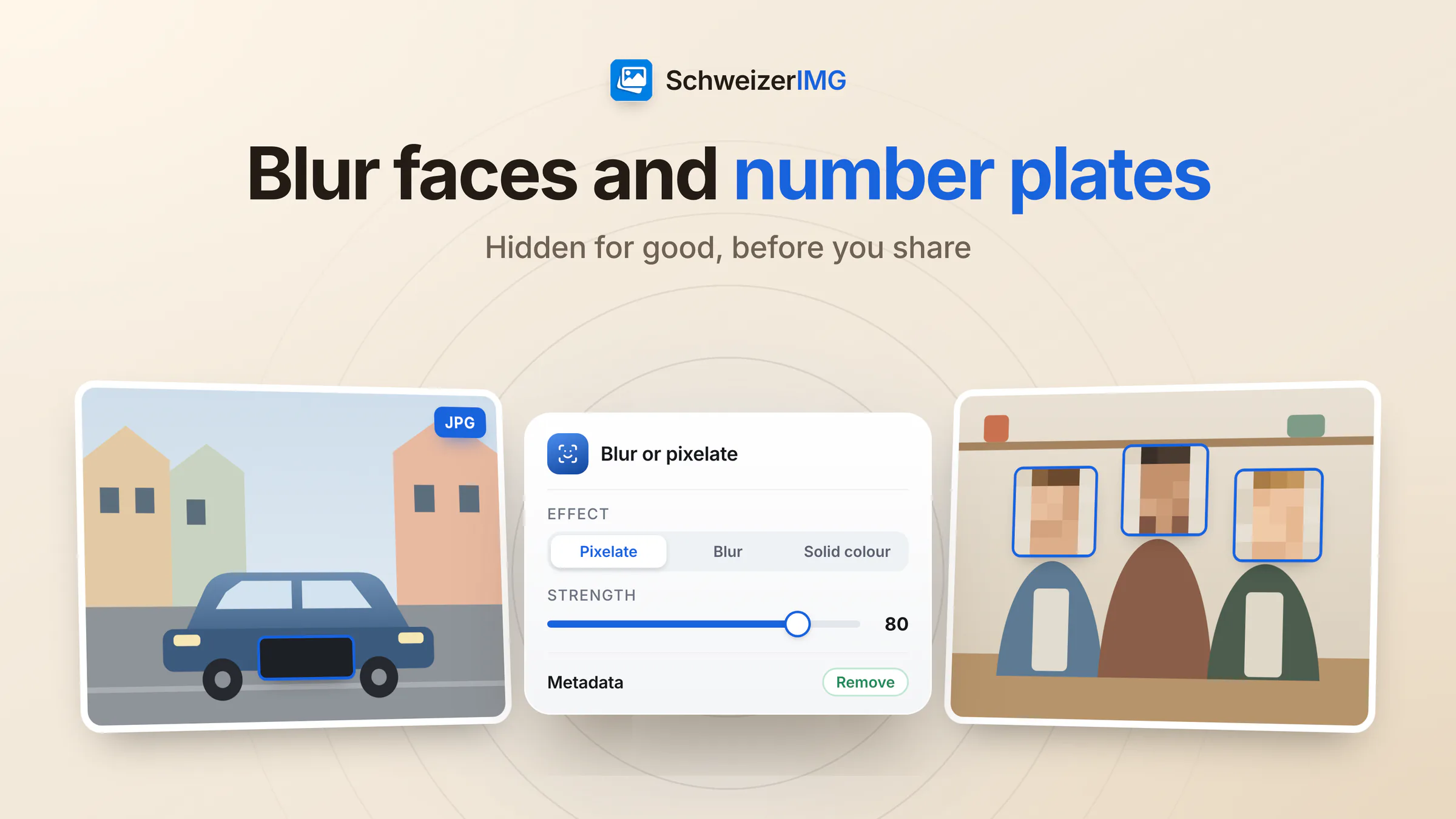
To blur faces in photos or hide a number plate, open Blur or pixelate, draw a box over each face or plate, choose a strong effect — pixelate at a high strength or a solid colour — and download the result. Then check it at full size and make sure the metadata is gone before you share it.
Everything happens in your browser: the photo is not uploaded, and the hidden pixels are replaced in the exported file, so they cannot be recovered from it. This page walks through the workflow and the settings that make the difference.
When you need to blur faces and number plates
- Event photos — the Muster AG summer party in Lucerne: some guests agreed to appear in the newsletter, others did not.
- A car sale listing — the Kontrollschild of your own car, and the neighbour's car parked next to it.
- Incident documentation — damage photos you share in a public report or a forum, with bystanders and other vehicles in the frame. Whoever processes a claim may need the unedited version; keep it separate.
- Real-estate exteriors — passers-by, plates in the driveway and house numbers of neighbouring buildings on a listing photo. See image tools for real estate.
- Editorial pictures — a crowd photo where one person stands out. See image tools for media.
Whether a person needs to be hidden at all depends on consent and context — that is covered in photos of people in Switzerland. This page is about doing it properly.
Blur, pixelate or solid colour: which effect to choose
| Effect | How it looks | Good for |
|---|---|---|
| Pixelate (default) | Large single-colour blocks | Faces, people in the background — clearly hidden, still reads as a photo |
| Blur | A soft smudge | Faces where a calmer look matters; from strength 70 it is pixelated first, then blurred |
| Solid colour | A filled area in a colour you choose | Number plates, names, house numbers, documents — nothing of the original is left |
Strength runs from 1 to 100 and is relative to the image, so the same value gives a comparable result on a phone photo and on a large camera file. The default is 60; for faces, 70 or more is the safer choice. Soft edge fades the effect outward — the inside of the area stays fully hidden.
How to blur faces in photos, step by step
- 1
Open the tool and add the photo
Open Blur or pixelate from the editing tools and add your image. A series taken from the same position — a tripod shot of a room, a webcam frame — can go in together.
- 2
Mark each area
Draw a box over a face or a plate and add it as a rectangle or an ellipse. Repeat for every area. Leave a generous margin: hair, ears and the edge of a plate frame help recognition too.
- 3
Choose effect and strength
For faces, Pixelate or Blur at 70 or higher. For plates and any text, Solid colour.
- 4
Keep the metadata setting on Remove
The tool removes metadata by default, and it always drops embedded previews — small copies inside the file that could still show the unedited picture.
- 5
Run, download and check at 100 % zoom
Open the exported file at full size and look again, especially at small text, reflections in windows and mirrors, and stickers or badges.
The full tool reference is in blur faces and number plates.
Why strong settings matter
Hiding is not only about what the eye sees at first glance. A face pixelated into many small blocks can still be recognised by people who know the person. Text is even more fragile: a Swiss number plate follows a fixed pattern — a canton code and a handful of digits — so a lightly pixelated plate can sometimes be guessed by trying candidates until one looks the same.
- Use Solid colour for plates, names, addresses and anything readable.
- Use a strength of 70 or more for faces; push it higher on small faces in large photos.
- Cover the whole object with a margin, not just its centre.
- Look for the same detail twice: a plate reflected in a shop window, a face in a mirror.
Irreversible — in the exported file
The tool replaces the hidden pixels in the exported image; no tool can bring them back from that file. Your original on your disk stays unchanged. Keep it private, or delete it once it is no longer needed.
Several photos with faces in different places
The areas you mark apply to every image of a run, in proportion to its size. That suits a series from a fixed position. For event photos, where every face is somewhere else, process the photos one by one — each run counts as one operation. For freehand areas, the image editor Apply edits also hides areas with a brush. Which plans include Blur or pixelate and Apply edits is shown on the pricing page.
After blurring: metadata and originals
A photo can give away a place even when every face is hidden: the GPS location in its metadata. If you switched the metadata setting to one of the keep options, run Remove metadata before sharing; it works losslessly. What else a photo file carries is explained in what your photos reveal.
Your images are processed on your device and never sent to or stored by us — about them, the server only learns which tool ran and whether it succeeded. More on the security page.
Frequently asked questions
Can a pixelated face be restored?
Not from the file SchweizerIMG exports: each block holds a single colour in place of the pixels it replaced, so the detail is gone. What remains possible with weak settings is recognition or guessing — which is why strong settings and a solid colour for text are recommended.
Does SchweizerIMG find faces automatically?
No. There is no automatic face or plate detection; you mark each area yourself. That takes a moment longer and means you decide exactly what is hidden.
Should I blur the plate when selling my car?
It is a sensible precaution: a plate links the photo to a vehicle holder. Hide neighbouring cars' plates too, and house numbers if the photo shows where you live.
Ready to try it on your own photos? Create an account.
General information
This page is general information and marketing content, not legal advice. It describes how to make faces and number plates harder to identify; whether a photo may be published depends on consent and context. For a decision about your own situation, please consult a qualified professional.