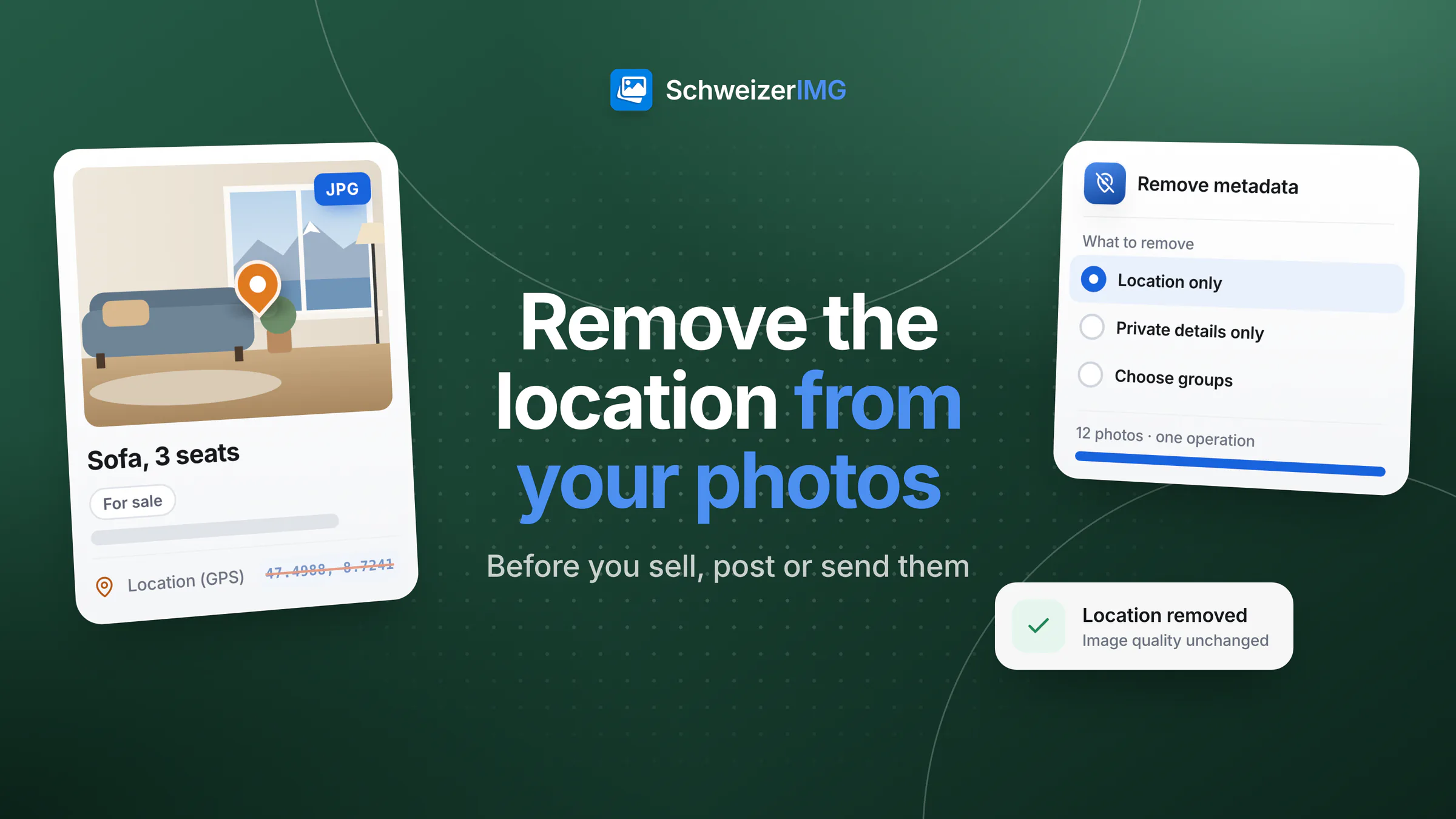
To remove the location from photos, open them in Remove metadata, choose Location only or Private details only and save the cleaned copies. The GPS coordinates and place names are taken out of the file; the pixels are not re-encoded, so the photos look exactly as before. A quick look in View metadata first tells you whether a photo carries a location at all, and a second look afterwards confirms it is gone.
This page is the practical workflow for everyday situations. Which fields a photo stores and what each can reveal is explained in what your photos reveal; how the different ways of stripping metadata compare is in six ways to remove EXIF data.
When the location in a photo gives too much away
- Selling something from home. The photos of a bicycle or a sofa for a marketplace ad are usually taken in your flat, cellar or garden — and the coordinates point to that address.
- Holiday photos posted while you are away. A picture from Ticino tells everyone you are not at home; an older photo from your balcony in the same album shows where home is.
- Photos of a flat. When you look for a subtenant or send pictures of your flat to an agency, the address may be shared on purpose later — but not with everyone who sees the first set.
- Pictures of children. A photo from the playground, the school route or the garden shared with a wider group can show where a child spends the day. Children cannot judge that themselves.
Check first: does the photo contain a location?
Open one or more photos in View metadata. Under What this image reveals, the report lists the Location (GPS) with its coordinates and any Place names such as a city or a district, next to other private details. The report shows coordinates only: there is no map or address lookup, and nothing is sent anywhere. If no location appears, the file carries none — the rest of this page then only matters for the picture itself.
How to remove the location from photos, step by step
- 1
Collect the photos you want to share
Put the pictures for the ad, the post or the e-mail in one folder. Work on copies if you want to keep the originals exactly as they are — the tool always writes new files and never changes the ones on your disk.
- 2
Open Remove metadata and add them all
Drop the whole folder in. However many photos one run holds within your plan's files per run, it counts as one operation — see processing many images at once.
- 3
Choose what to remove
The tool starts at Everything that isn't needed to show the image. For a location-only clean-up, choose Location only; for sharing with strangers, Private details only is usually the better choice (see the table below).
- 4
Download the cleaned photos
The results are named after the originals with an added suffix, unless you tick Keep the original file names. SchweizerIMG doesn't keep a copy, so save them before you close the tab.
- 5
Verify one of them
Open a cleaned file in View metadata again. The location is gone; what you chose to keep — the date, for example — is still there.
Location only or a stricter option?
| Option in *Remove metadata* | What goes | A good choice when |
|---|---|---|
| Location only | GPS position and place names | The date and camera details should stay, for example in a family album |
| Private details only | Location, serial numbers, owner and contact details, previews, edit history, manufacturer data, embedded media | You share with people you don't know: ads, public posts |
| Private details, software, unique IDs and people | All of the above plus software names, unique IDs and named faces | Photos come from a photo library with face tags |
| Everything that isn't needed to show the image | All metadata except what displays the image correctly | You want to keep nothing, not even the date |
| Choose groups | Exactly the groups you tick, such as GPS location and Place names | You know precisely which fields must go |
Where “Location only” stops
Location only removes the GPS position and place names. Some cameras and phones also store data in their own manufacturer format, or attach a short motion-photo video after the image, and those can carry a position of their own. If View metadata lists manufacturer data or embedded media, choose Private details only, which removes both.
Tools that already leave the location out
If you resize or convert the photos anyway, the location may go in the same step. Convert format, Resize and Compress image have a Metadata option that starts at Keep, without location and device details; Blur or pixelate and Optimise for web start at Remove. Check the option before you run. Unlike Remove metadata, these tools re-encode the pixels — fine for a smaller ad photo, unnecessary when you only want the location gone. All of them are listed under the metadata and optimisation tools.
The picture itself can give the place away
Metadata is only half the story: a house number, a street sign or a recognisable view can locate a photo without any GPS data. Hide such details with Blur or pixelate before you remove the metadata — the workflow is in blur faces and number plates in photos. For agents and landlords who send flat photos regularly, more workflows are on image tools for real estate.
All of this happens in your browser: the photos are read from your device and saved back to it, never sent to or stored by us, and per run our server receives only the tool and the outcome. How that works is described on the security page.
Frequently asked questions
Does removing the location also clean photos I have already posted?
No. It changes only the copies you save now; a photo that is already online or sent keeps its location. Where the service allows it, replace the photo with the cleaned copy, or delete it and post it again.
Can the file name reveal the place?
Yes, if you named it that way. A file called “Seestrasse-12-living-room.jpg” says more than its metadata. Rename such files before you share them; Remove metadata doesn't change what the name says.
Can I keep the location for myself and share a copy without it?
Yes. The tool writes new files and leaves your originals untouched, so your own archive keeps the location while the shared copies don't. Keep the two in separate folders so you send the right ones.
What if a photo has no location but I still don't want to share the place?
Then the picture content is what matters. Look at the photo at full size for numbers, signs, views and reflections, and blur what gives the place away.
Read the guide on removing location and camera data for every option in detail. Which plans include Remove metadata is shown on the pricing page. Ready to clean your next set of photos? Create an account.
General information
This page is general information and marketing content, not legal advice. It simplifies how photo metadata is stored and removed; devices, apps and online services store and handle location data differently, and that can change with any update. For a decision about your own situation, please consult a qualified professional.