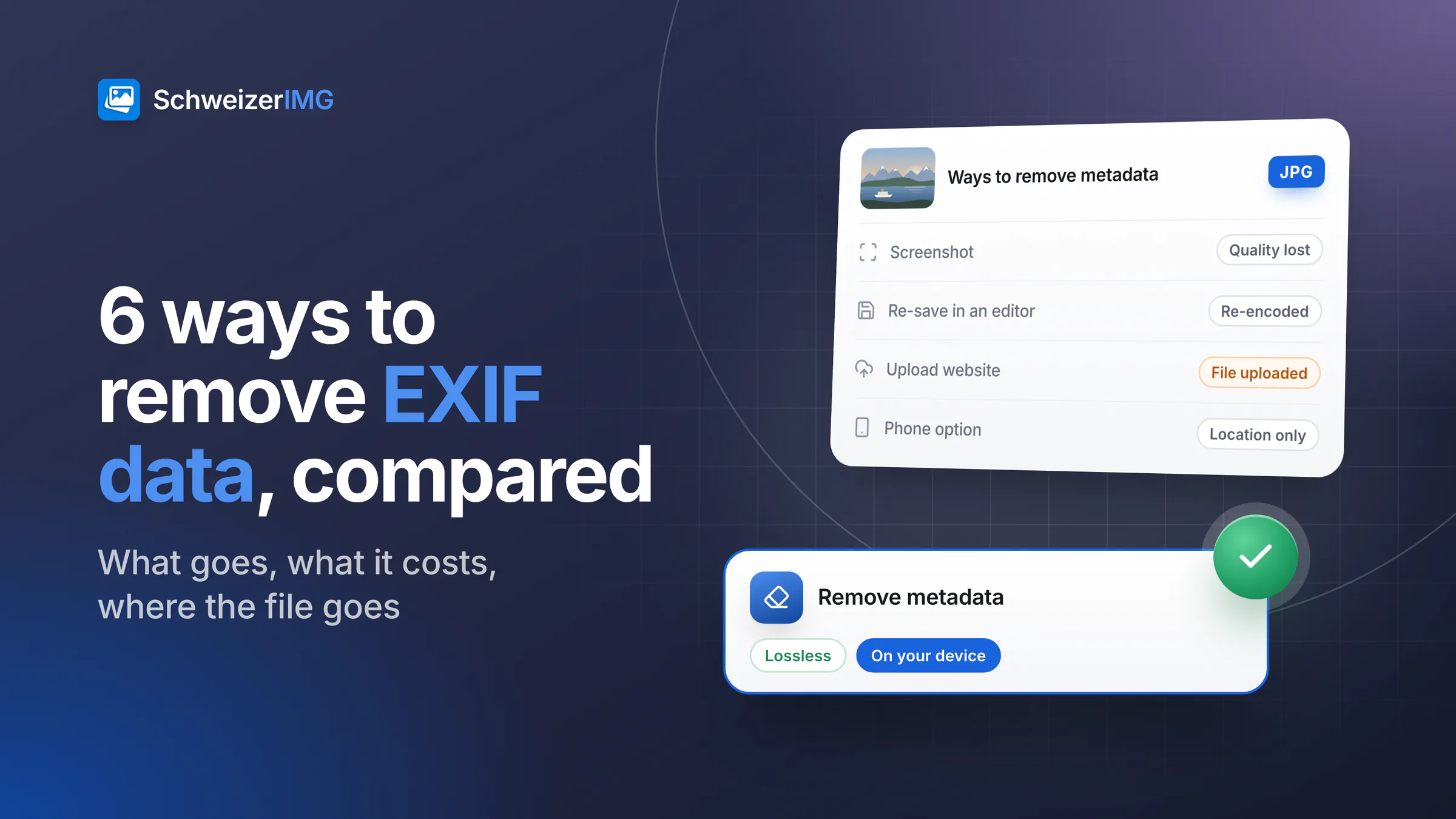
There are six common ways to remove EXIF data from a photo: a dedicated metadata tool on your device, re-saving or exporting the image in an editor, taking a screenshot of it, relying on the platform or messenger you share it with, a sharing option on your phone, and an upload-based metadata remover. They differ in three things that matter: what they actually remove, whether the image loses quality, and where the file goes in the process.
The short answer: a tool that rewrites only the metadata, on your own device, is the one method that removes exactly what you choose, keeps the image quality and keeps the file with you. The others can be good enough in some situations — this page shows which. What the metadata itself contains is explained in what your photos reveal.
The six ways to remove EXIF data at a glance
| Method | What goes | Image quality | Where the file goes | Can you check it? |
|---|---|---|---|---|
| Dedicated tool on your device | What you choose, from the location only to everything not needed to show the image | Unchanged — pixels not re-encoded | Stays on your device | Yes, before you share |
| Re-saving or exporting in an editor | Depends on the program and its settings | Usually re-encoded, a small loss each time | Stays on your device | Yes, if you open the result |
| Screenshot of the photo | The original metadata; the screenshot gets its own | Lower: screen resolution, possible scaling | Stays on your device | Yes |
| Relying on the platform or messenger | Differs by service and way of sharing; can change | Often re-compressed by the service | To the service, with all metadata | Only on the copy that arrives |
| Phone sharing option without location | Usually the location only | Usually unchanged | Stays on your device until shared | Only on the copy that arrives |
| Upload-based metadata remover | Depends on the site | Depends on the site | To a server you don't control | Yes, on the download |
Each method in detail: what it removes and what it costs
1. A dedicated metadata tool on your device
Remove metadata in SchweizerIMG rewrites only the metadata blocks of the file and copies the image data unchanged, so the photo is not re-encoded and looks exactly as before. You choose what goes: Location only, Private details only, a stricter privacy option, Everything that isn't needed to show the image, or individual groups. After writing, the tool reads the cleaned file again and stops with an error rather than hand you a file that still holds what should have gone. It runs in your browser: the photo is read from your device and saved back to it, never sent to or stored by us.
The limits: you need an account and a connection, large batches depend on your device's memory, and TIFF files can be read but not cleaned — convert them to JPEG, PNG or WebP first (supported formats). The practical workflow for everyday sharing is in remove the location from photos.
2. Re-saving or exporting in an image editor
Many desktop image editors and photo apps have an export dialog with a setting to include or leave out metadata. What it leaves out varies: some programs drop everything, some keep copyright or the colour profile, some keep the location unless you untick it, and many add their own software name. Exporting a JPEG again also re-encodes it, which costs a little quality each time.
If you are converting or resizing anyway, this route makes sense — in SchweizerIMG, Convert format, Resize and Compress image have a Metadata option that starts at Keep, without location and device details. Just check the result instead of trusting the setting's name.
3. Taking a screenshot of the photo
A screenshot is a new image, so the original's EXIF data is not copied into it. The price is quality: the picture is captured at screen resolution, often scaled, sometimes with the edges of the viewer or a status bar in it. And a screenshot is not free of metadata — depending on the device, it carries its own, such as the date, the device model or the software. It is a quick fix for a casual picture, not a method for photos where detail or certainty matters.
4. Relying on the platform or messenger
Some services remove some metadata from what they display; which fields, for which way of sharing, differs and can change with any update — this is covered in what your photos reveal. For this comparison, two points matter: the complete file, location included, reaches the service first, and you can only check the result on the copy that arrives, after it has been shared.
5. A phone sharing option that leaves out the location
Some phones offer, when you share a photo, an option to leave out the location, and most let you stop the camera from recording it at all. Both are convenient. But the sharing option usually concerns the location only — serial numbers, embedded previews or the edit history may stay — and it applies to that one share. Turning the location off in the camera protects only the photos you take from then on. To know what was sent, send a photo to yourself and open it in View metadata.
6. Upload-based metadata removers
Websites that remove metadata after an upload do the job, and for photos that will be public anyway they are perfectly fine. For private photos the logic is odd: to hide your location and device details, you first hand them to a server you don't control, and you cannot see what is logged or kept there. The two architectures are compared in editing images without uploading them; how SchweizerIMG keeps files on your device is on the security page.
Which method to choose
- You share photos of your home, your children or your clients: a dedicated tool on your device, with Private details only for people you don't know. Don't rely on the platform.
- You only want the location gone and the date kept: Location only in Remove metadata — it keeps dates, camera details and copyright.
- You resize or convert anyway: let that step drop the location, then check one result.
- You send one casual snapshot to a friend: your phone's option to leave out the location is enough — check it once with a photo sent to yourself.
- Quality doesn't matter and the screen shows nothing else: a screenshot will do, with its own small metadata.
Check any method in seconds
Whatever you use, open the result in View metadata. It reads the file in your browser and lists location, serial numbers, previews and other private details; for coordinates it shows the numbers only, with no map or address lookup. For a platform or messenger, check the copy as the recipient gets it.
Frequently asked questions
Does converting a photo to PNG or WebP remove the EXIF data?
Not necessarily. PNG and WebP can carry EXIF and XMP data too; whether it is copied depends on the program. In Convert format, the Metadata option decides: Keep all, Keep, without location and device details or Remove.
Which method removes metadata without losing quality?
Only one that rewrites the metadata and leaves the image data untouched, such as Remove metadata. Re-saving, exporting, screenshots and most platforms produce a new, re-encoded image.
Is switching off location in the camera enough?
It stops new photos from recording a position, which is a good default. Photos you already have keep theirs, and every photo still carries other details such as the camera model, dates and, depending on the device, serial numbers.
Does a screenshot remove all metadata?
It removes the original photo's metadata, but the screenshot has its own — at least a date and often the device — and the image is only as sharp as your screen.
Try the on-device route with the metadata tools and the guide on removing location and camera data. Which plans include Remove metadata is shown on the pricing page. Create an account to check your next photo.
General information
This page is general information and marketing content. It simplifies how metadata standards (EXIF, XMP, IPTC) and different programs, devices and online services handle metadata; their behaviour varies and can change with any update. It is not legal advice; for a decision about your own situation, please consult a qualified professional.