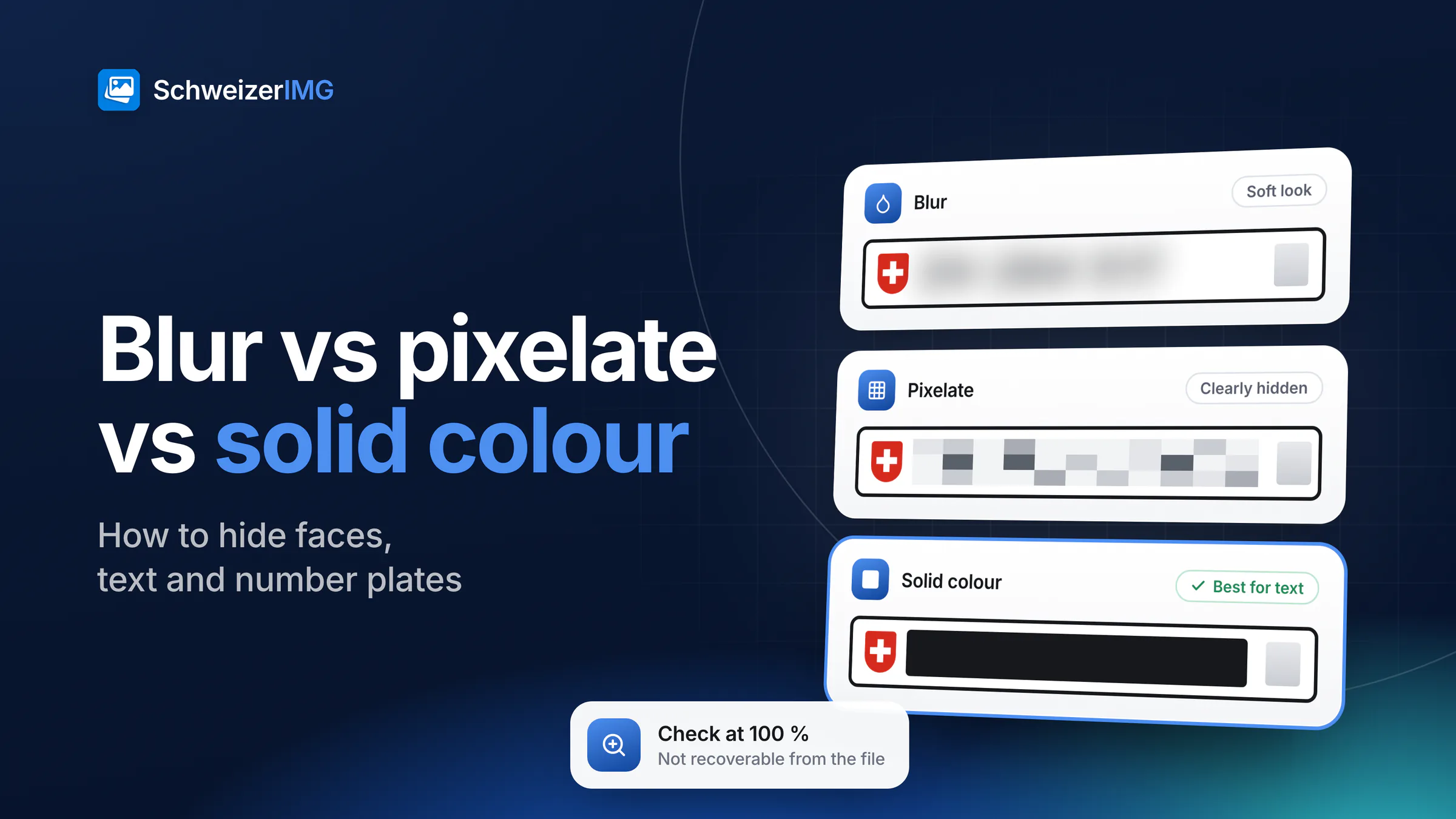
Blur vs pixelate, in short: for faces, both work well when the setting is strong; for text, number plates and anything readable, a solid colour is the safer choice, and cropping is safer still when the detail is not needed at all. In the file that SchweizerIMG exports, none of the three effects can be reversed — the difference lies in what can still be guessed and in how the picture looks.
This comparison puts five methods side by side: blurring, pixelating, covering with a solid colour, cropping out and drawing over with a shape or layer. The step-by-step workflow is in blur faces and number plates; here the focus is on why the methods differ and which one fits which detail.
- Blur — the area becomes a soft smudge. Shapes and colours stay roughly visible.
- Pixelate — the area becomes a grid of single-colour blocks, each the average of the pixels it replaces.
- Solid colour — the area is filled with one colour you choose. Only its size and position are left.
- Cropping out — the detail is cut off, so it is not part of the new image at all.
- Drawing over — a box, a marker stroke or a sticker placed on top, in an image editor, a document or a slide.
Blur vs pixelate vs solid colour: the comparison table
| Method | Original recoverable from the exported file? | Can the content still be guessed? | Look | Best for |
|---|---|---|---|---|
| Blur | No — the pixels are averaged and replaced | With weak settings, rough shapes, colours and the outline of short text may remain | Soft, calm | Faces where a quiet look matters; from strength 70 it is pixelated first |
| Pixelate | No — each block keeps only an average | Small blocks over short text or a plate can sometimes be matched by trying candidates | Blocky, clearly hidden | Faces, people in the background |
| Solid colour | No — one colour replaces everything | No — only the size and position of the area | A flat box | Number plates, names, numbers, addresses, documents |
| Cropping out | No — the area is not in the new file | No, unless the rest of the picture gives it away | Smaller picture, nothing to see | Details at the edge of the frame |
| Drawing over | In a layered file: often yes, the shape can be moved. In a flattened image: no | Translucent markers can let text show through | Depends on the shape | Annotations — not as the only way to hide something |
The first three rows refer to the file Blur or pixelate exports. Your original image on your disk is not changed — that copy still shows everything.
What “irreversible” means — and what it does not
Blurring and pixelating both average pixels: many different originals produce the same blocks, so no software can calculate the lost detail back from them. Blur or pixelate also averages before it blurs — below strength 70 in small blocks, from 70 in the same blocks as the pixelate effect — so even a blurred area holds no more than those averages. A solid colour keeps nothing at all.
An image file can also hide the original elsewhere: some carry a small embedded preview of the unedited picture in their metadata. Blur or pixelate drops embedded previews whatever the metadata setting, and removes the metadata by default. What else a photo file contains is explained in what your photos reveal.
Irreversible is not the same as unrecognisable, though. A face blurred lightly can still be recognised by people who know the person, from hair, clothing or the place. And text has a weakness of its own, described next.
Can pixelated text be read? Why guessing is the real risk
Nobody can “unpixelate” a block back into letters. What can work, in some cases, is guessing: someone who knows the font and size renders candidate texts, pixelates them the same way and compares the result with your blocks. The shorter and more predictable the text, the easier this is — a Swiss number plate, for example, is a canton code and a handful of digits.
- Block size — blocks smaller than a character leave its rough outline; blocks larger than a whole word leave almost nothing to compare.
- Pattern — plates, postcodes, dates, amounts and account numbers follow formats that narrow the candidates.
- A known font — screenshots and printed forms use common fonts, which makes rendering candidates easier.
- Several versions — two photos of the same plate, each hidden slightly differently, give more to compare than one.
A solid colour gives a guesser nothing to compare with, which is why it is the recommendation for anything readable.
Strength and soft edge: how the settings change the result
In Blur or pixelate, Strength runs from 1 to 100 and scales with the image, so the same value hides a face comparably on a phone photo and on a large camera file. From 70 onward, Blur is pixelated before it is blurred: it still looks soft, but keeps no more detail than a pixelation. For faces, use 70 or more; push it higher for small faces in large pictures.
Soft edge lets the effect fade out around the area. The fade lies outside the outline you drew, so it never weakens the inside. Leave a generous margin anyway: ears, hair and the frame of a plate help recognition too.
Drawing over: layers versus a flat image
In a layered file — a slide, a text document or an image editor's own project format — a box drawn over a name is a separate object above the picture. Anyone who receives that file can move or delete it, and a translucent highlighter may let the text show through. Once everything is flattened into a single image, the box is just pixels, like a solid colour. Screenshots have pitfalls of their own, from notifications to open tabs — see what screenshots reveal.
The image editor (Apply edits) exports exactly such a flat image at full resolution: shapes, text and hidden areas become part of the pixels, and no layers travel with the file. To hide something there, use its hide areas function — blur, pixelate or cover, also with a brush — rather than a drawn shape or sticker: it is made for the job and drops embedded previews of the unedited image. The editor is described in use the image editor.
Which method to choose
- Number plates, names, addresses, numbers, signatures: Solid colour — or crop them out if they don't belong in the picture.
- Faces and people: Pixelate or Blur at strength 70 or more, with a margin around the head.
- Something at the edge of the frame: Crop — nothing of it remains in the new image.
- A whole screen or document in the background: a solid colour or a large pixelated area; small text survives weak settings longest.
- Arrows and highlights: draw them, but never rely on a drawn shape in a layered file to hide anything.
Always check at 100 %
Open the exported file at full size, not the preview. Look at the hidden areas, then at the rest: a plate reflected in a window, a name on a badge, a face in a mirror. If you can still guess, make the area larger or the setting stronger.
Blur or pixelate is one of the editing tools; Crop is among the transform tools. The full tool reference is in blur faces and number plates.
The photos that need hiding are the ones you shouldn't hand to a stranger first. SchweizerIMG processes images in your browser; they are never sent to or stored by us, and per run the server receives only the tool and the outcome. More on the security page and in browser image tools vs. upload websites.
Frequently asked questions
Is blurring or pixelating safer?
At strength 70 or more, they keep the same amount of information in SchweizerIMG: blur is pixelated first. Below that, pixelation tends to leave less to guess. For text, neither is as safe as a solid colour.
Can image-enhancement software restore a pixelated face?
Such software can invent a plausible-looking face, but it cannot bring back the person's actual features: the blocks only hold averages. The risk with weak settings is recognition, not restoration.
Is a black bar enough to hide a number plate?
Yes, when the bar is part of the image's pixels, as with Solid colour, and covers the whole plate. Check for a second view of the same plate elsewhere in the picture.
Does a soft edge make the hiding weaker?
No. The soft edge lies outside the area you marked; the inside stays fully hidden.
Which plans include Blur or pixelate and Apply edits is shown on the pricing page. To compare the effects on your own photos, create an account.
General information
This page is general information and marketing content, not legal or security advice. It simplifies how blurring, pixelating and covering work; whether a hidden detail stays unidentifiable depends on the picture and its context. For a decision about your own situation, please consult a qualified professional.