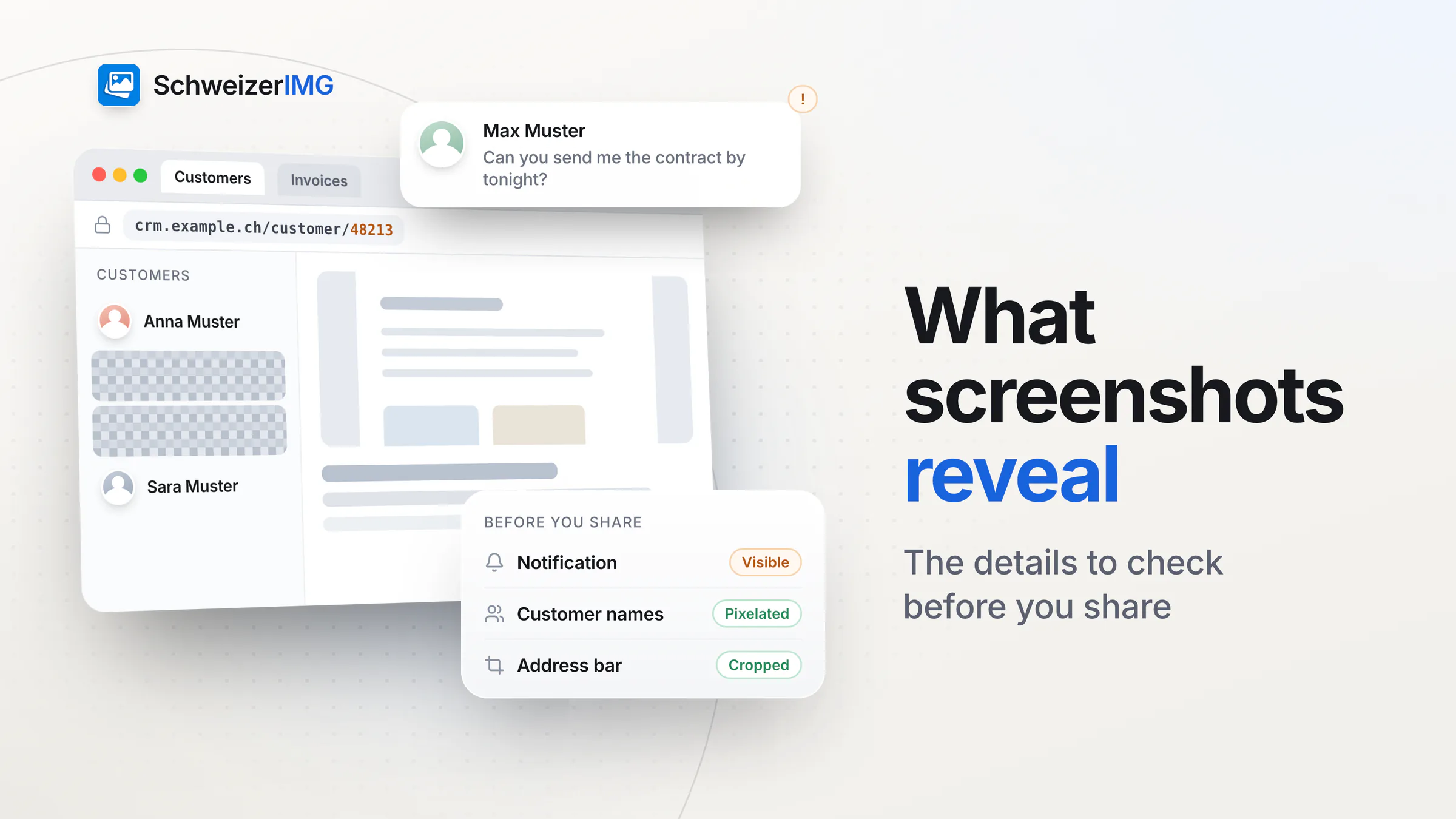
A screenshot feels like the most harmless way to share something: you show exactly what is on the screen, nothing more. In practice, that is the problem. A screen holds far more than the one message, error or chart you want to show — a notification sliding in, the names in a sidebar, the tabs at the top, a customer list in the window behind.
The short answer: what a screenshot reveals is mostly visible — so check the whole picture, crop to what matters, hide what has to stay in it with Blur or pixelate, and remove the little metadata it carries with Remove metadata. All of that can happen on your own device before the image leaves it. This article lists the usual giveaways and shows how to clean a screenshot step by step.
What a screenshot can reveal
| Where to look | What it can give away |
|---|---|
| Notifications and message previews | The sender's name and the first lines of a private message or an e-mail that arrived at the wrong moment. |
| Browser tabs, bookmarks and address bar | Which sites and internal tools you use, page titles of other cases, and addresses that carry customer numbers or session IDs. |
| Names, e-mail addresses and profile pictures | Who you work or chat with — in a contact list, a chat header, the “To” line of an e-mail or a shared document. |
| Data in the background | Customer records, patient lists, invoices or another chat in a window behind the one you meant to show. |
| File paths and user names | Folder names, project names and the account name in a path such as C:\Users\anna.muster\Clients. |
| Status bar: clock, battery, network | Usually minor — the time of day, your mobile operator or the name of a Wi-Fi network can still say more than intended. |
Screenshot privacy in everyday situations
- The support ticket. You send the error message to a software vendor — and the sidebar next to it lists the names of your last twenty customers.
- The chat you forward. A funny exchange goes to a group; the header shows the other person's phone number and profile picture.
- The bug report. The address bar holds an internal server name and a link with a record ID that should never leave the company.
- The presentation. A screenshot of a dashboard is pasted into slides for a client, together with the notification of a private message that popped up as you pressed the keys.
Do screenshots contain metadata?
Usually much less than a camera photo. A screenshot rarely carries a GPS position, but depending on the device and the app it can contain a creation date, the device or the software that made it, the screen's colour profile and, once another program has edited and saved it, that program's name. That is seldom critical — but it is easy to check with View metadata and to remove losslessly with Remove metadata. What camera photos store, from location to serial numbers, is explained in detail in what your photos reveal.
Cropped doesn't always mean gone
Many built-in photo and screenshot editors crop non-destructively: they keep the original and store the crop as an instruction, so the full picture can be restored on that device. Whether the file you share contains the cut-off part depends on how it is exported. In the past, flaws in some built-in screenshot editors even left the removed parts recoverable in the saved file. And a shape drawn over a screenshot in a slide or a text document is a separate object — anyone with the file can move it aside.
The dependable route is a new image file that only contains what you keep. Crop writes such a file from the area you choose, and Blur or pixelate replaces the hidden pixels in the exported image itself.
How to clean a screenshot before you share it
- 1
Look at the whole picture
Zoom in and check the corners, the tabs, the status bar, the sidebar and anything behind the main window. Reading the screenshot as a stranger would is the most important step.
- 2
Crop to what matters
Open Crop and keep only the part that tells the story — usually much less than the full screen. You can paste a screenshot straight from the clipboard instead of saving it first.
- 3
Hide what has to stay in the picture
Open Blur or pixelate, mark names, e-mail addresses, numbers or faces as rectangles or ellipses and choose blur, pixelation or a solid colour. The areas you mark apply to every image of the run — handy for a series of screenshots of the same screen. See blurring faces and details.
- 4
Frame it (optional)
Screenshot beautifier places the image on a background with padding, rounded corners, a soft shadow and an optional window frame. It makes a screenshot look tidy; it does not hide anything, so crop and blur first.
- 5
Remove the metadata
Finish with Remove metadata. Many tools also ask what to do with the metadata of their results; by default they keep it without location and device details. See removing location and camera data.
Blur, pixelate or a solid colour?
In short: a solid colour for text such as names, e-mail addresses, account and phone numbers, and a strong pixelation or blur for faces. A light blur can leave large text legible, so check the result zoomed in. What each method still leaves to guess is compared in blur vs pixelate vs solid colour.
Hidden for good — in the exported file
In the result, the hidden pixels are replaced and cannot be recovered. The original screenshot on your disk stays unchanged: delete it if it shouldn't be kept, and make sure it isn't synchronised somewhere you didn't intend.
Why you should clean screenshots on your device
A screenshot full of customer names is exactly the kind of image you don't want to upload to yet another online service just to blur it. SchweizerIMG runs Crop, Blur or pixelate, Screenshot beautifier and Remove metadata in your browser: the image is processed in memory on your device, and our server learns only which tool ran and whether it worked — never anything about the file. How that works is described on the security page; the two architectures are compared in browser tools vs. upload websites. Local processing doesn't protect against a compromised device or a malicious browser extension, so keep both in good order.
Swiss context
A screenshot that shows names, e-mail addresses or customer records contains personal data under the Swiss Federal Act on Data Protection (FADP / nDSG). Sharing only what the recipient needs is good practice — and cropping and blurring make it easy.
Frequently asked questions
Do screenshots contain my location?
Rarely as GPS data — but often visibly: a map, a weather widget, a Wi-Fi name or an address in the picture. Check the image itself first, then open it in View metadata to see what the file stores.
Can a blurred screenshot be un-blurred?
Not from the exported file of Blur or pixelate: the hidden pixels are replaced. A weak blur over large, high-contrast text can still be guessed, which is why a solid colour is the safest choice for text.
Does the Screenshot beautifier remove sensitive details?
No. It adds a background, padding, corners, a shadow and an optional window frame. Everything inside the screenshot stays as it is — crop and blur before you frame it. Which plans include Screenshot beautifier is shown on the pricing page.
How do I keep notifications out of screenshots?
Turn on your device's do-not-disturb or focus mode before you capture, close tabs and windows you don't need, and use test accounts with fictional data such as “Anna Muster” or “Muster AG” for demonstrations.
A clean screenshot takes a minute; a whole set for a user guide is covered in preparing screenshots for documentation. Start with the editing tools, read how blurring works and how to remove metadata, or create a free account.
General information
This page is general information and marketing content, not legal advice. It simplifies the Swiss Federal Act on Data Protection (FADP / nDSG), and what devices and apps store in screenshots differs by model and software version. For a decision about your own situation, please consult a qualified professional.