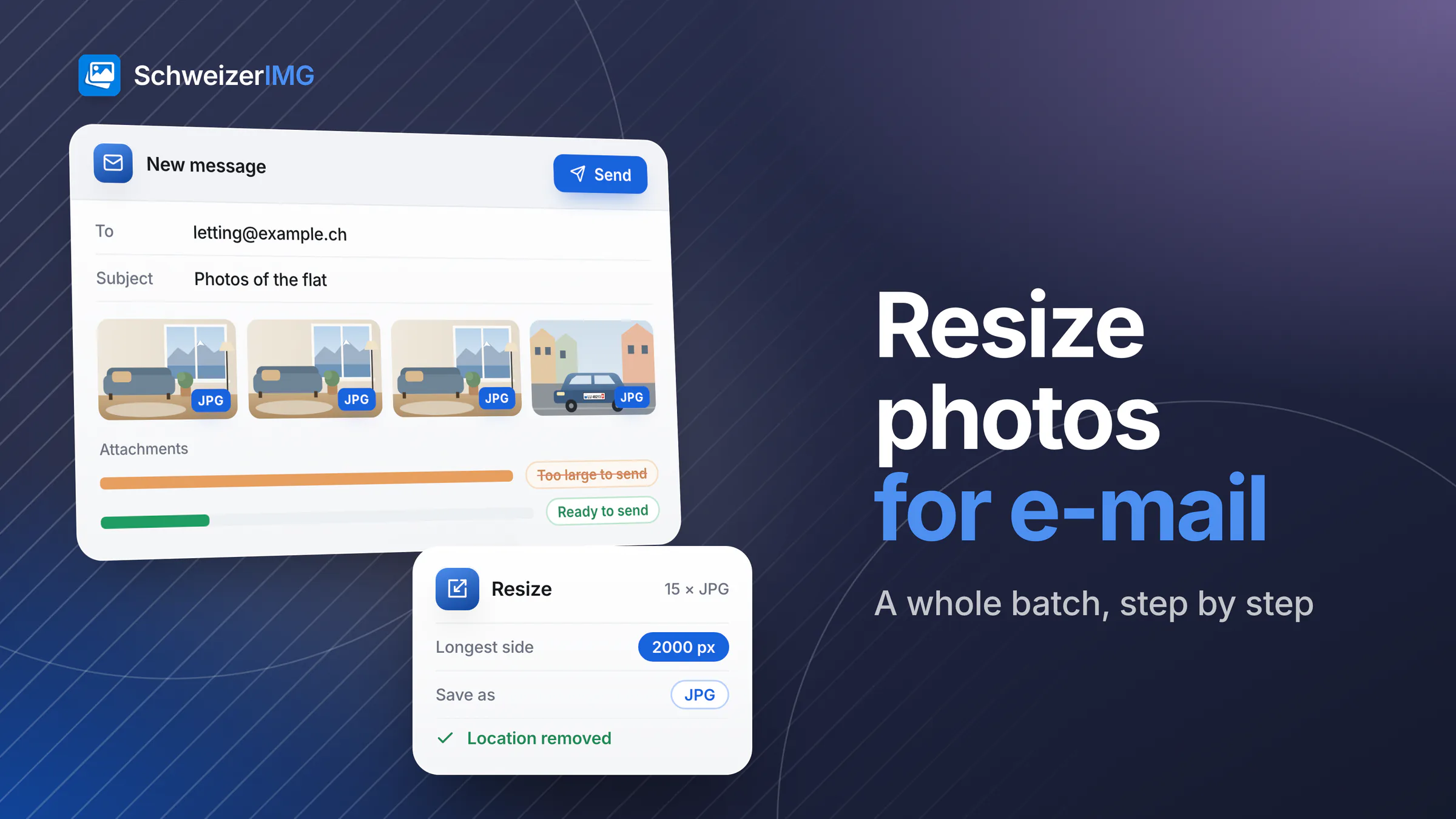
To resize photos for e-mail, add the whole set to Resize, choose “Longest side” with a value of around 2,000 pixels and save as JPG. That alone usually turns photos of several megabytes each into files a fraction of the size, which still look sharp on any screen. If a form sets a limit per file, Compress image with Target file size does the rest; Remove metadata takes out the location before you send.
A typical case: Anna Muster is letting her flat in Bern and wants to send fifteen photos to the property management by e-mail, and upload six of them to the listing form, which accepts only small files. Straight from the phone, the set is far too big for both. The workflow below handles all fifteen at once, in her browser — the photos are not uploaded to us. Preparing the photos for the listing itself is covered in real estate listing photos; more for the sector in SchweizerIMG for real estate.
Why photos from a phone are too big to e-mail
- Many megapixels. Phones and cameras record far more pixels than a screen shows. Each photo then weighs several megabytes, and a dozen of them quickly exceed what a message can carry.
- Attachment limits. Many e-mail providers limit a message's attachments to between a few and a few dozen megabytes — and the recipient's mailbox may accept less than yours sends.
- Attachments grow when sent. E-mail encodes attachments as text, which makes them about a third larger in transit. A set that just fits on your device may not fit in the message.
- Forms set their own rules. Upload forms often limit the size of each file, the number of files and the accepted formats — often JPG and PNG only.
Before you start
- Find out the limit. Look up the form's maximum per file and the accepted formats; for e-mail, assume the smaller of your provider's and the recipient's limit.
- Choose the photos. Leave out duplicates and blurred shots — the fastest way to a smaller total.
- Keep the originals. Process copies; the full-size photos stay on your device for printing or later use.
- HEIC photos? Many phones save HEIC. SchweizerIMG opens them only in Safari — see phone photos in HEIC. In other browsers, let the phone export the photos as JPEG first.
Resize photos for e-mail, step by step
Each step is one tool, applied to all photos in one run; after a run, Continue with another tool passes the results straight on without downloading them in between. See processing many images at once.
- 1
Add all photos to Resize
Open Resize in the optimisation tools and drop in the whole set. Portrait and landscape photos can be mixed.
- 2
Set the longest side
Choose “Resize by” → “Longest side” and enter the side length in pixels, for example 2,000. Every photo keeps its proportions; “Enlarge smaller images” stays at “Never”, so smaller photos are left as they are.
- 3
Save as JPG
Under the format options, set “Save as” to JPG — the most compatible format for e-mail and forms. Leave “Quality” empty for the automatic setting. This step also converts HEIC photos opened in Safari; left at “Same as original”, they would be saved as PNG, which is much larger.
- 4
Compress if a form has a limit per file
Continue with Compress image. Automatic with Recommended makes the files smaller without visible loss; Target file size compresses each photo until it fits the form's limit — the field expects bytes, so a limit of one megabyte is entered as roughly a million. Alternatively, Resize itself has a “File size” mode. More in compressing and converting images.
- 5
Remove the location
Resize and Compress image already keep the metadata without location and device details by default. To be thorough — or if you changed that setting — run Remove metadata with “Private details only” or “Location only”. It works losslessly and does not touch the pixels.
- 6
Check the total and download
The results show the total size before and after, and the savings in percent. If the total fits the limit, download the photos individually for a form, or all at once as a ZIP file for your own folder.
Already small enough and only the format is wrong — for example HEIC photos for a form that accepts JPG only? Then Convert format alone is enough, in Safari for HEIC.
How small is small enough?
There is no single right size; it depends on what the recipient does with the photos. Some practical starting points:
| Purpose | Starting point | Tool and setting |
|---|---|---|
| Viewing on a screen | Around 2,000 px on the longest side | Resize with “Longest side” |
| A quick look on a phone | Around 1,200 to 1,600 px | Resize with “Longest side” |
| Upload form with a limit per file | Just below the stated limit | Compress image with Target file size |
| Printing or archiving | The original files | Send them another way or ask the recipient |
Smaller is not always better: a photo of a meter reading, a damaged part or a document needs enough pixels to stay legible. Why fewer pixels shrink files so much, and how to check that nothing visible was lost, is explained in image compression explained.
Location and other hidden details
Photos from a phone usually carry the exact place where they were taken, the time and the device. Sent by e-mail or uploaded to a form, those details travel with the file — for photos of your home they reveal its address. What else a photo file can contain is explained in what your photos reveal. Before sending, View metadata shows whether a location is still in the file.
Why the photos stay on your device
Every step runs in your browser. The photos are not sent to us, and nothing is kept after you close the tab — download the results before you leave. Per run, our server receives only which tool ran and whether it finished; details on the security page, and the difference to upload websites in browser tools vs. upload websites.
Each run is one operation, however many photos it holds, within the files per run of your plan; the steps above use one to three operations for the whole set. Operations and files per run for each plan are on the pricing page.
Frequently asked questions
What size should photos be for e-mail?
For viewing on a screen, around 2,000 pixels on the longest side is plenty, saved as JPG. That keeps each photo sharp and small enough for a set to fit in one message.
Does resizing make my photos look worse?
Not on a screen, as long as the longest side stays above what the screen shows. Resize uses high-quality resampling and can sharpen after resizing. Detail is lost only when the photo is enlarged or printed again.
Why is the e-mail still too large after resizing?
Usually because of the number of photos and the encoding of attachments, which adds about a third. Use a smaller longest side, compress the set, or split it over two or three messages.
Can I resize photos from the phone in the browser?
Yes, SchweizerIMG works in the phone's browser too. With very large photos or big sets, split the photos into a few smaller runs, as a phone has less memory than a computer.
Ready to try it?
Open the tools, see which plans include each tool on the pricing page, or create a free account.
General information
This page is general information and marketing content, not professional advice. It simplifies how e-mail providers and upload forms handle attachments, which differs between services and changes over time; for a specific case, check the provider's or the form's current requirements.