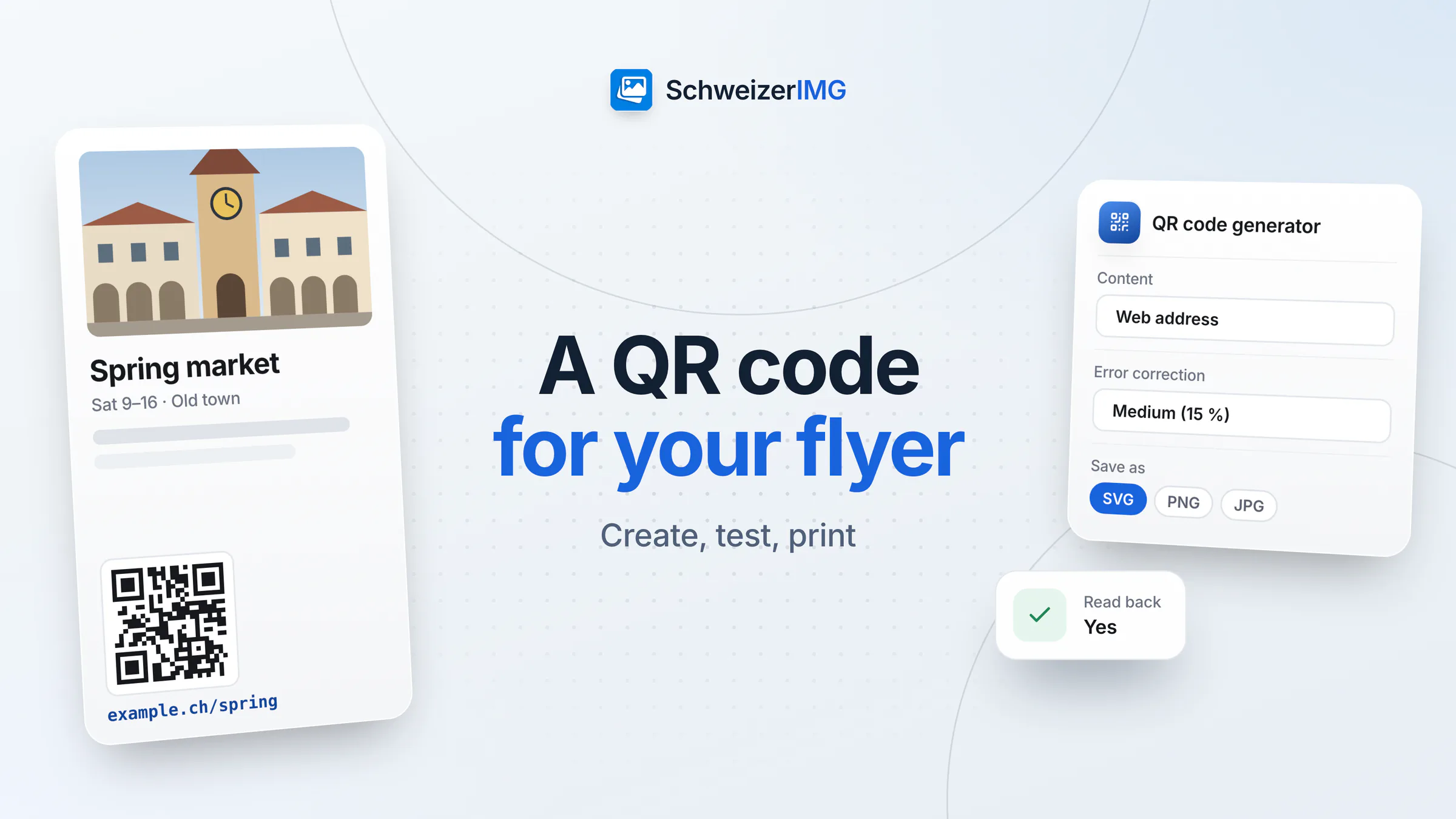
To create a QR code for a flyer, decide first which page it should open — ideally a stable address on your own website. Then enter that address in QR code generator, keep dark-on-light colours and the quiet zone, save the code as SVG for print (or as a large PNG), test it with several phones and print it big enough for the distance it will be scanned from.
The code is created in your browser, and about it the server learns only that the tool ran — not the address you typed. The same steps apply to a poster, a menu on the table, a sign at reception or a business card.
Before you start: what should the QR code open?
- A page you control. Link to your own domain, for example
example.ch/fruehling, rather than a long address on someone else's platform. If the offer changes, you update the page — the printed code stays valid. - A short, readable address. A short address makes a code with fewer, larger modules, which scans faster. It also works as a fallback printed under the code.
- No tracking-heavy short links. Link shorteners and redirect services hide the real destination, can record every scan and may stop working when the service ends. A static code with your own address avoids all three — background in QR codes: create them well, scan them safely.
- Something useful on a phone. The page should load quickly and read well on a small screen: the menu, the event programme, the booking form.
Other content types work too: a contact card (vCard) for a business card, a Wi-Fi network for reception (ideally a guest network, since the password is readable in the code), a place for a hard-to-find entrance.
How to create a QR code for a flyer, step by step
- 1
Open QR code generator
It is among the utilities. If you have not used a tool yet, your first tool shows the basics.
- 2
Choose the content
Select Web address and type the address. If you leave out
https://, it is added for you. For a business card, choose Contact (vCard) instead. - 3
Set the error correction
Medium is the default and suits most flyers. Choose Quartile for codes outdoors or on surfaces that get handled. If you add a logo, the tool raises the level to High automatically.
- 4
Pick the colours
Keep the code colour dark and the background light. A dark brand colour is fine; the tool warns if the contrast is too low or the colours are inverted.
- 5
Choose size, quiet zone and format
Keep the Quiet zone around the code at 4 modules. Under Save as, choose SVG for print; choose PNG at a large Size in pixels if your layout program needs a raster image.
- 6
Create and check the result
The result shows the encoded text and a Read back line: the tool decodes its own output and confirms whether it reads as exactly your text. Then download the file.
Which file format for print: SVG or PNG?
| Format | Good for | Keep in mind |
|---|---|---|
| SVG | Print of any size — flyers, posters, roll-ups | A vector: it scales without blur. Hand it to the print shop as it is. |
| PNG | Layout programs and office documents that want a raster image | Choose a large size: at the default 1,024 pixels, a code prints sharply up to about 8 cm at 300 dpi. |
| JPG | Places that accept only JPG | Lossy compression can soften the edges; PNG or SVG is better for a code. |
| WebP | A code shown on a website | Saved losslessly; not every print workflow accepts it. |
More on the formats in image formats compared and in the help article on supported formats.
Print size, contrast and placement
- Size for the distance. A common rule of thumb is a code width of about a tenth of the scanning distance. Around 2 to 3 cm is enough on a business card or a table menu; a poster on a wall seen from two metres needs about 20 cm.
- Plain background around it. Don't place the code on a photo or a pattern, and keep the quiet zone free of text and the edge of the page.
- Matt and flat. Glossy laminate can reflect light into the camera; a code on a fold or a curved bottle may not read.
- A call to action. Say what the code does: “Today's menu”, “Book a table”, “Programme and tickets”.
- A text fallback. Print the short address under the code —
example.ch/menu— for people whose phone does not scan, and so everyone can see where the code leads.
Test before you print
Print a proof at the final size and scan it with at least two or three different phones, in normal room light and from the real distance. Also take a photo of the proof and open it in QR code reader: it shows the content as text without opening the link, so you can compare it character by character with the address you intended.
After printing: keep the destination stable
A printed code works as long as its page exists. Keep the address alive even after the event — redirect it to a current page rather than deleting it. If you change your website, keep the old address forwarding to the new one. And in public places, check your codes from time to time for stickers placed over them; restaurants and hotels will find more on menus and guest Wi-Fi in image tools for hospitality.
Frequently asked questions
How big should a QR code be on a flyer?
As a rule of thumb, a flyer held in the hand needs a code about 2.5 to 3 cm wide plus the quiet zone. Shorter content and good contrast help a small code read; test the proof at its final size.
Can I put our logo in the middle of the code?
Yes. Add the logo as an image in QR code generator. The tool switches error correction to High, and if the logo would make the code unreadable, it shrinks the logo until the code reads.
Can I change where the code leads after printing?
Not in the code itself — it holds the address you typed. Link to a page on your own website and change that page's content, or forward the address to a new page.
Does creating a QR code use an operation?
Yes, each successful run counts as one operation, like any other tool. See how operations are counted; which plans include QR code generator is shown on the pricing page.
Ready for your next flyer? Create a free account and make the code in your browser.
General information
This page is general information and marketing content. Print sizes and scanning distances are common rules of thumb; results depend on the printer, the material and the phones used, so always test a proof. It does not cover the Swiss QR-bill, which follows its own rules.