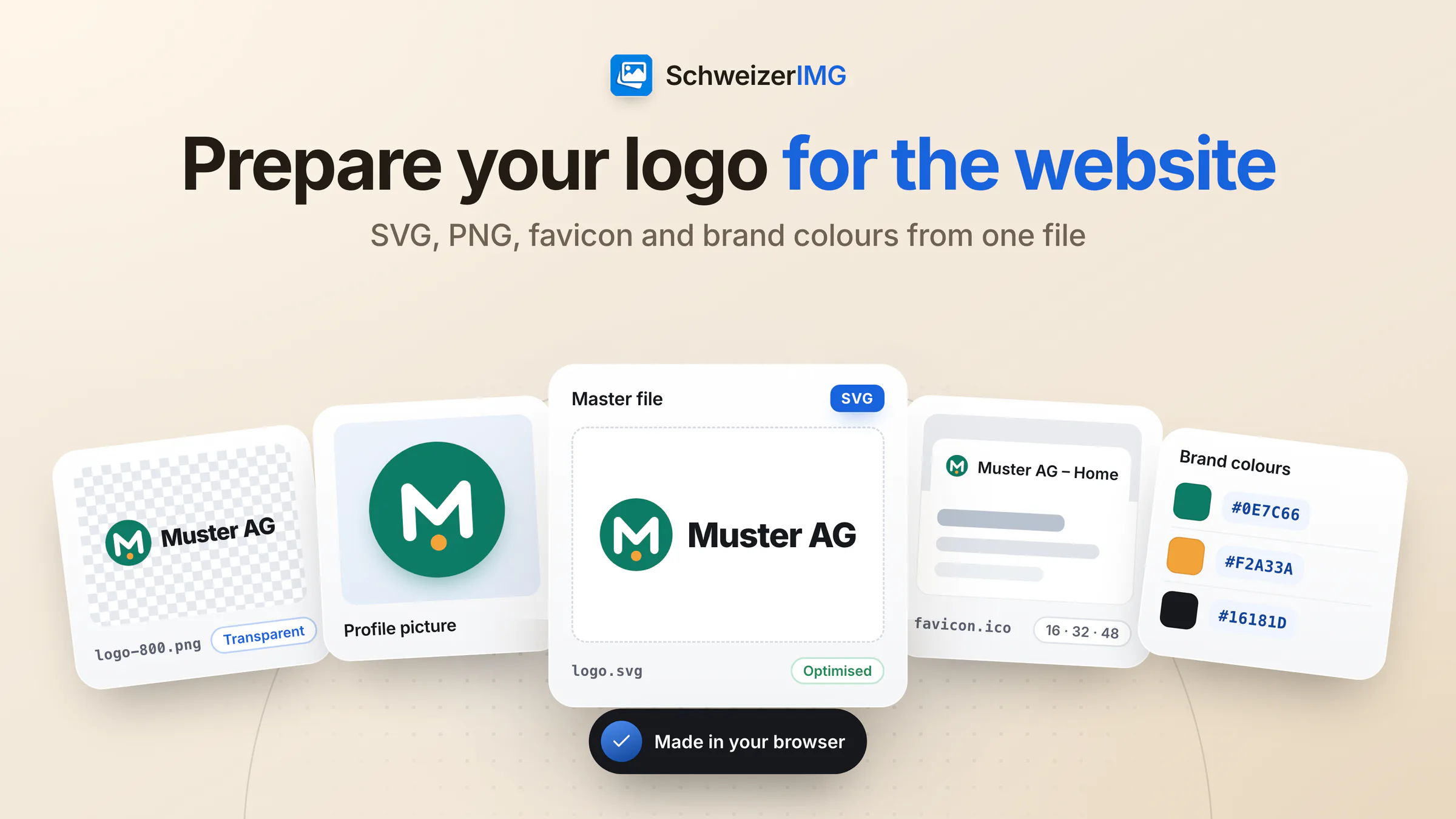
To prepare a logo for a website, turn one master file into a small kit: an optimised SVG for the header and footer, PNG versions in two or three widths for e-mail signatures, documents and upload forms, a square profile picture, a favicon set with its HTML tags, and the brand colours as exact values. Starting from the designer's SVG, SchweizerIMG makes each of these files in your browser, in a handful of runs.
This use case is the checklist and the order of work. Why the master should be a vector is explained in SVG vs PNG for logos, and which icon sizes browsers and home screens expect in favicon sizes explained. An unpublished logo — a rebrand before its launch date — never leaves your device while you work; see the security page.
The logo kit: which files a small business website needs
| File | Made with | Used for |
|---|---|---|
logo.svg, optimised | Optimise SVG | Website header and footer, online shop |
logo-400.png, logo-800.png, transparent | SVG to PNG, JPG, WebP or AVIF | E-mail signature, office documents, upload forms |
logo.webp | SVG to PNG, JPG, WebP or AVIF | Web pages where a pixel image is required |
profile.png, square | SVG to PNG, JPG, WebP or AVIF, then Pad | Social profiles, directories, messenger accounts |
favicon.ico, touch and manifest icons, tags | Favicon & app icons | Browser tab, bookmarks, home screens |
brand-colours.css, swatch image | Colour picker & palette | Website styles, a note for whoever designs next |
Before you start: ask the designer for the right files
- The master as SVG, with the text converted to outlines. SchweizerIMG never loads external fonts and draws remaining text with its bundled fonts, so a wordmark in a special font may otherwise change.
- The symbol on its own, without the wordmark. It becomes the favicon and the profile picture, where a full logo is too small to read.
- A light version for dark backgrounds — a dark footer, a dark e-mail theme.
- The colour values the designer used, especially for print. Colours picked from a file are screen values.
Preparing a logo for the website, step by step
Each step is one run, and one run is one operation. Continue with another tool passes a result on without downloading it in between — see continuing with another tool.
- 1
Optimise the SVG
Open Optimise SVG and add the master file. Safe (keeps ids, classes and styles) is the right preset if your website styles the logo; Aggressive (smallest) otherwise. Keep Check that the result looks identical on, and leave the title and description in place: screen readers read them. Scripts and linked files are removed first.
- 2
Export the PNG and WebP versions
In SVG to PNG, JPG, WebP or AVIF, set Size by to Width and enter several widths, for example 400 and 800 — one image each, in one run. Leave the background transparent. Choose PNG for e-mail and documents, and run once more with WebP for web pages.
- 3
Make a square profile picture
Export the symbol in one width, then open Pad with Make: Square and a fill colour from your brand. Keep some space around the mark: many profile pictures are shown as a circle.
- 4
Create the favicon set
Open Favicon & app icons with the symbol's SVG, add some padding and a background colour for the Apple and maskable icons, and enter where the files will be on the website. Download the set and paste the tags from
snippet.htmlinto the<head>. - 5
Record the brand colours
Open a PNG of the logo in Colour picker & palette, pick the exact colours or let it extract the palette, and create the CSS variables (.css), JSON and a swatch image (.png). Each colour comes with HEX, RGB, HSL, HSV and OKLCH values.
Only a JPG or PNG of the logo? Clean it up or trace it
Many small businesses have their logo only as an image from an old website or an e-mail. Two tools help, within clear limits:
- Transparent background: Remove background colour makes an even background transparent by its colour — no AI. Background colour on
autodetects it from the edges. Connected to the edges (keeps enclosed areas) keeps the white inside letters such as O; Everywhere in the image removes it there too. Raise the Tolerance for a JPG with compression noise, and keep Smooth edges on. A gradient or photo background will not come off cleanly. - A vector again: Image to SVG (trace) rebuilds simple flat logos as shapes; the preset Logo (up to 8 flat colours) suits most of them. The result is a reconstruction, not the designer's file: check it at large and small sizes, and use the largest, cleanest source you have. Which plans include Image to SVG (trace) is shown on the pricing page.
The original file is always better
Before tracing, ask the designer, the print shop or the agency that made the logo for the vector file — it often still exists. A traced logo is a good stopgap for the website, not a replacement for the master in print.
Before you go live: a final check
- Header on a phone and a high-density screen: the SVG should be sharp, the wordmark readable.
- Light and dark backgrounds: a dark logo on a transparent PNG disappears in a dark e-mail theme — use the light version there.
- The tab and the home screen: the favicon should be recognisable at 16 pixels and not cut off on a phone.
- Consistent file names: for example
muster-ag-logo-800.png, so colleagues pick the right file. - One folder for the kit: master SVG, exports, favicon set and colour file together, so the next update starts from the same files.
Agencies that prepare such kits for several clients will find the wider workflow on the page for agencies.
Frequently asked questions
Which logo files does a small business website need?
An optimised SVG for the website, transparent PNGs in two or three widths for e-mail and documents, a square profile picture, a favicon set and the colour values. One master SVG is enough to make all of them.
Can I make a favicon from a logo with a long wordmark?
Use the symbol or an initial instead: a wordmark is unreadable at 16 pixels. If there is no symbol, Favicon & app icons can also make the set from text or an emoji on a brand colour.
How do I find the HEX values of my brand colours?
Open the logo in Colour picker & palette and pick the colours. For print, ask the designer for the defined values: the CMYK values the tool shows are approximate.
Can I remove the white background from a logo JPG?
Yes, if the background is even: Remove background colour makes it transparent and saves the result as PNG, WebP or AVIF. Then the logo can sit on any colour.
Ready to sort out your logo? Open the vector tools and the create tools, check the supported image formats, or create a free account.
General information
This page is general information and marketing content. It simplifies how file formats work and how websites, e-mail programs and online profiles display logos, which differs between programs and changes over time. It does not cover trademark or copyright questions about a logo. For print jobs, brand guidelines or legal questions, please consult your designer, print shop or a qualified professional.